

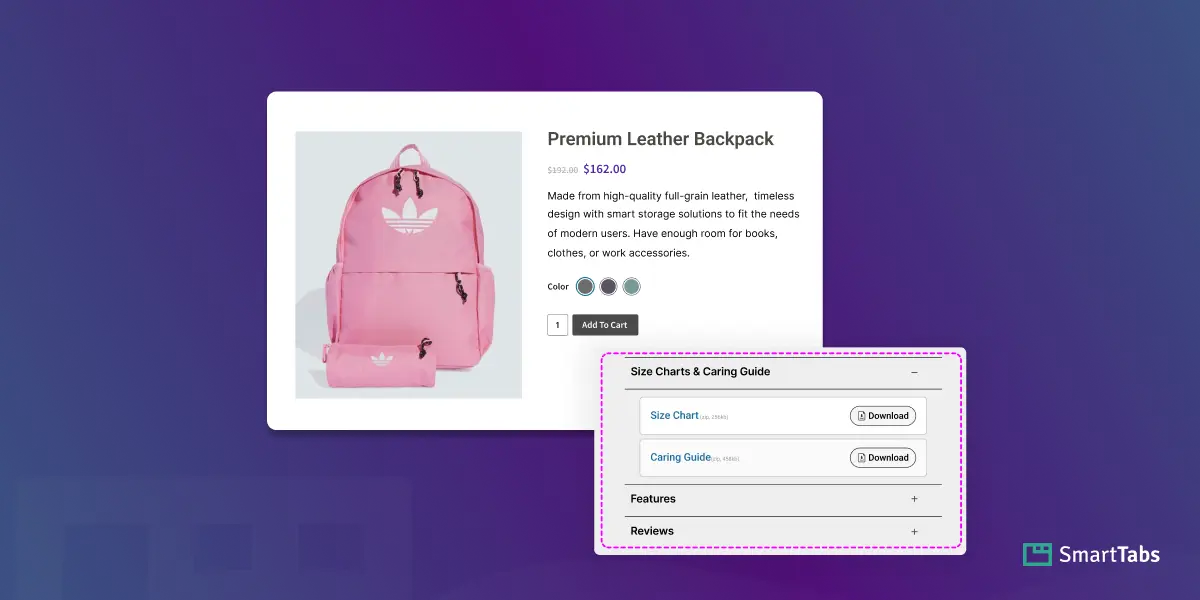
Struggling to reduce customer queries and increase your WooCommerce product page conversion? One of the best ways is to add conversion-focused downloadable PDF file tabs to WooCommerce products, letting your customers know all the additional information easily.
Without informed product info, shoppers might feel hesitant, ask unnecessary questions, or abandon the purchase entirely. To add a custom file tab, you need a custom product tabs plugin like Smart Tabs Pro.
With a dedicated Download Tab, you can attach your files, such as User Manuals, Care Guides, Size Charts, etc., in multiple formats PDFs, Docs, or any type of document directly inside an organized product tab efficiently — without any code.
In this blog, I’ll show you how to add a PDF file tab and attach or upload any downloadable files to your WooCommerce products using Smart Tabs Pro.
Let’s get started!
What is a Download Tab in WooCommerce?
A Download Tab is a dedicated product tab that lets you add and organize downloadable files directly on your WooCommerce product pages. Instead of scattering PDFs, charts, manuals, or size guides across different places, you can centralize everything inside one clean, user-friendly tab.
With Smart Tabs Pro, it’s easier. With its dedicated download tab, you can easily share technical specifications, product manuals, size charts, warranties, installation guides, or any other essential documents — all from a single, organized tab. This helps customers quickly access the information they need, reduces support questions, and improves buying confidence.
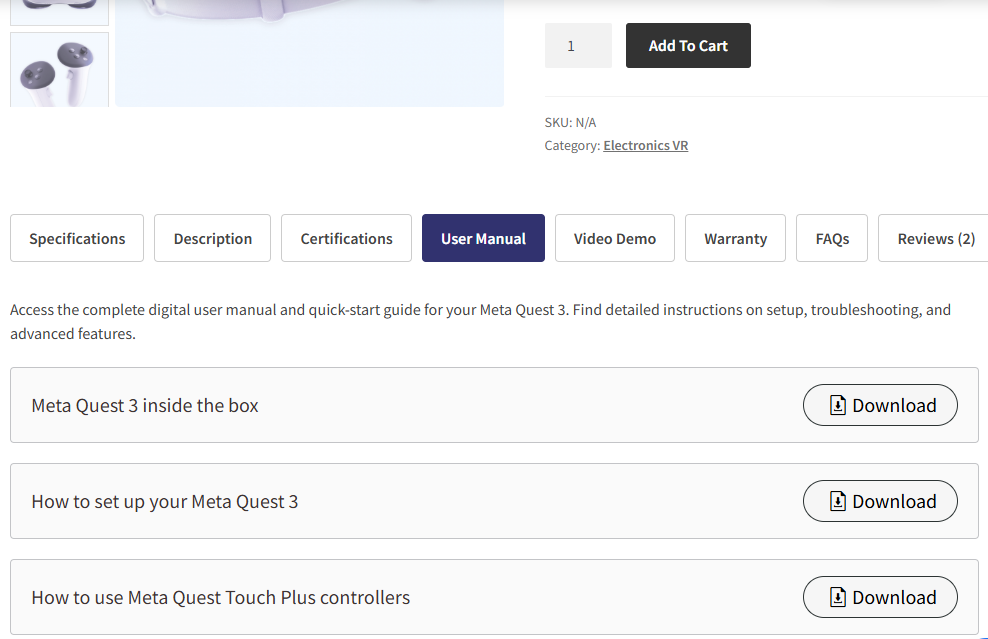
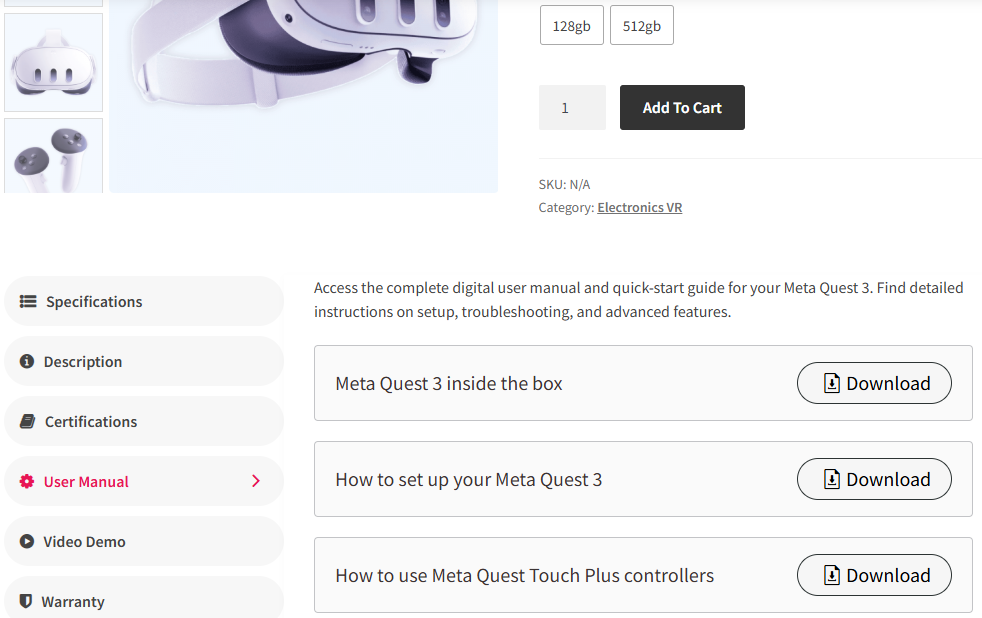
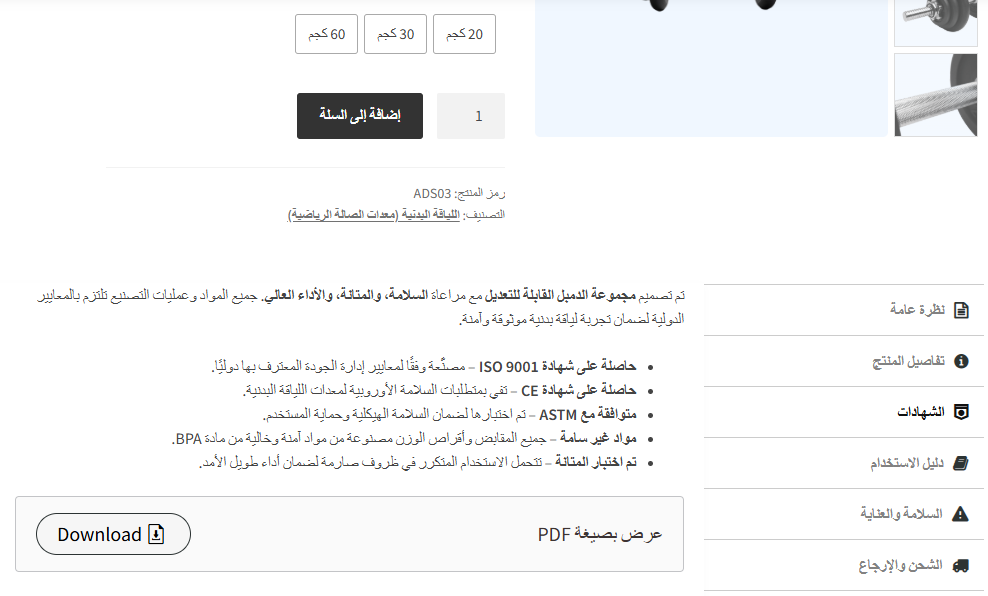
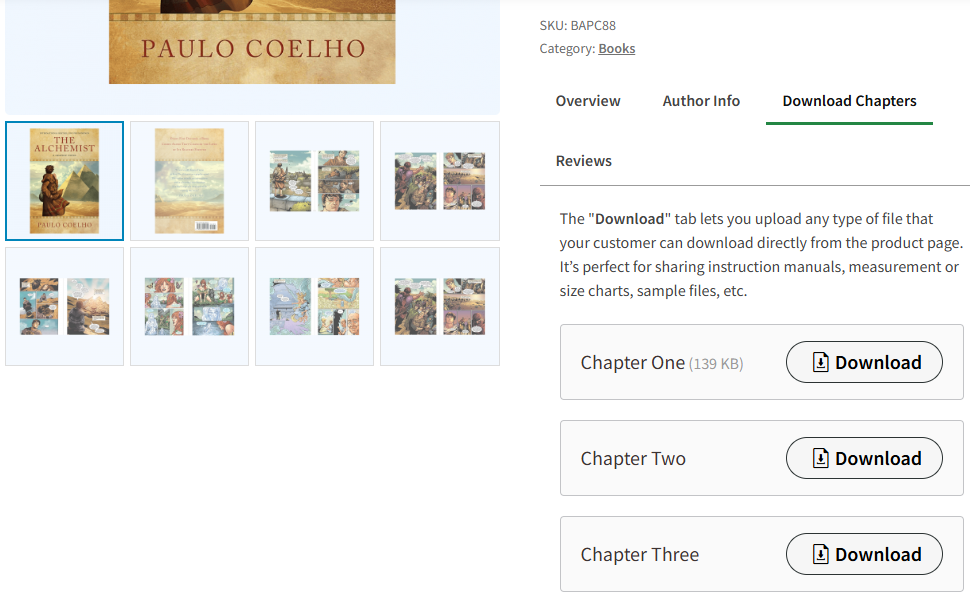
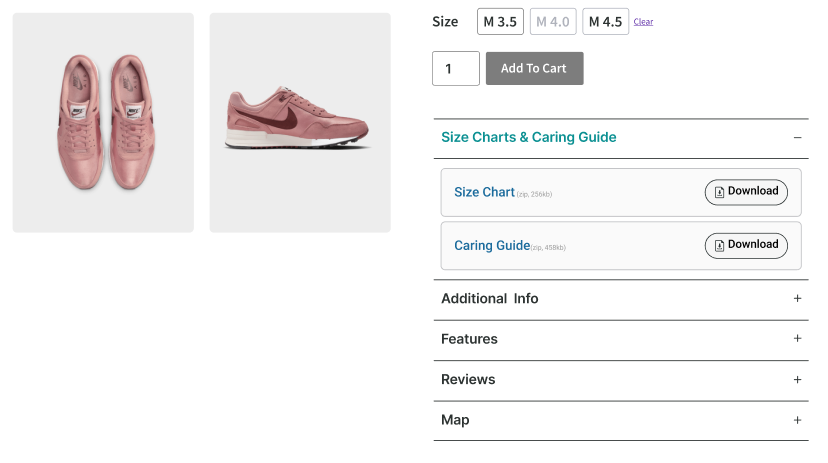
The Benefits of Attaching PDF & Document Files to Product Page:
Customers want clarity before purchase. By attaching downloadable files, you can provide more detailed information that reduces customer confusion, improves the shopping experience, and increases conversion rates.
- More informed decisions — manuals, guides, and spec sheets reduce confusion.
- Lower return & refund rates — customers download instructions before they misuse or misunderstand products.
- Reduced support tickets — no more “Can I get the manual?” messages.
- Better post-purchase onboarding — customers get everything they need immediately.
- More professional product pages — clean documentation builds credibility and trust.
Why Smart Tabs Pro’s File Tab is a Better Alternative to Typical PDF Plugins?
As a WooCommerce store owner, you might need to add many downloadable files according to the product’s care guide, size charts, or manuals. Since WooCommerce doesn’t have a dedicated file tab, you might need to install a separate PDF File or Size Chart plugin. For a single feature, it is really costly and might even reduce site speed.
Fortunately, ShapedPlugin brings the best tab plugin for you, the Smart Tabs Pro, an ultimate custom product tabs solution to create unlimited custom tabs, including 8 Custom and Personalized Tab Types: (Text, Image, Video, FAQ, Map, Size Chart, Download, Related Products), and more!
Key Features of Download Tab:
- Add Unlimited Files Tabs ( PDFs, Docs, Words, ZIP, More)
- Attach Multiple files inside one tab (Care Guides, Size Charts, Specs), etc.
- Add File Name, Tab Icons & Short Descriptions for clarity
- Show Tabs Globally, by Category, Brands, Attributes, and Per Product
- Exclude or Override Each Tab Per Product
- Add External URLs to embed or insert any shareable resources
- Supports Text, Images, Videos, and All Downloadable files
- Completely No-Code and Beginner-friendly
- Beautiful, clean tab design for all WooCommerce themes
What’s more? Smart Tabs Pro supports all the file formats a WooCommerce store typically needs.
Add Universal Files to Your Tab. It supports all types of documents, images, videos, and audio, including:
- .pdf — user manuals, warranties, datasheets
- .xls / .xlsx — size charts, specs, measurement tables
- .doc / .docx — instructions, policies, guides
- .jpeg / .png — diagrams, product labels, charts
- .webp — lightweight images and illustrations
- .zip / .rar — bundled files or multi-file packages
- .mp4 / .mp3 — product demo videos, tutorials, audio instructions
How to Attach Downloadable PDFs to WooCommerce Products (3 Simple Steps)
Step 1: Install Smart Tabs Pro
Smart Tabs Pro is a premium WooCommerce tab management & WordPress Tab builder plugin that gives flexibility to add, create unlimited custom product tabs, manage, or rename WooCommerce default tabs efficiently. For beautiful displays, you add 9 more responsive layouts (Horizontal, Vertical & Accordion) with easy customization options, enabling you to create professional product tabs in minutes without coding.
Moreover, it lets you assign tabs globally, specific products, categories, tags, brands, attributes, SKUs, shipping classes, product visibility, and more. Besides, using it, you can hide, override, or exclude tabs on individual products — giving you ultimate control over every product page.
So, don’t be late. Let’s install Smart Tabs. It’s easy. However, if you’re new (Future Master) to this custom tab plugin, follow this step-by-step guide, and I am sure it will help you install it within minutes.
Step 2: Create Download Tab & Attach Downloadable Files
1. From your WordPress Dashboard, go to the Smart Tabs plugin. Navigate to the Product Tabs (New), click on it, and the WooCommerce Default Tabs will be displayed.
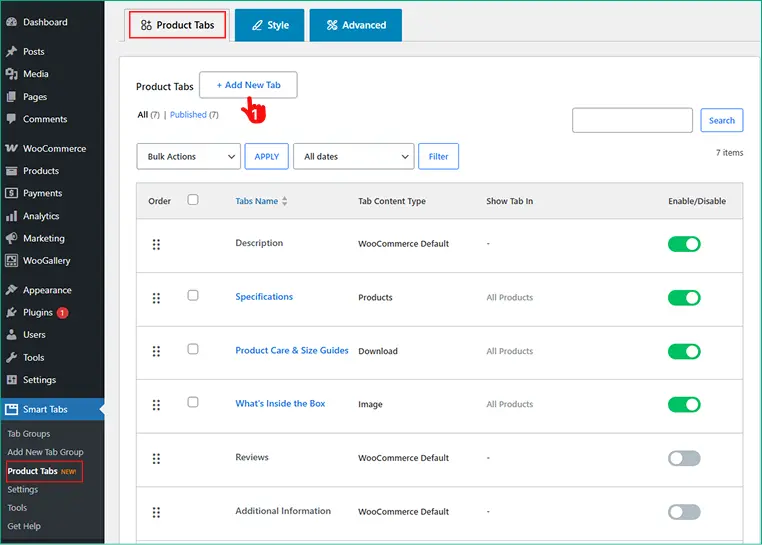
2. Click on “Add New Tab“, choose the Tab Type (Download), give it a title, and add an icon.
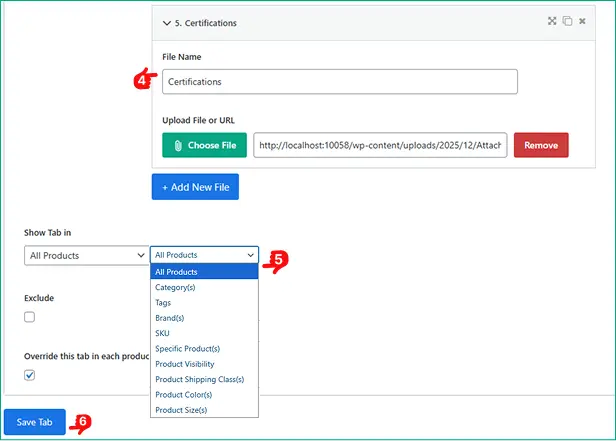
3. Scroll down to find the option to upload your file(s) — PDF, DOCX, XLSX, ZIP, Google Docs or Drive Link, etc.
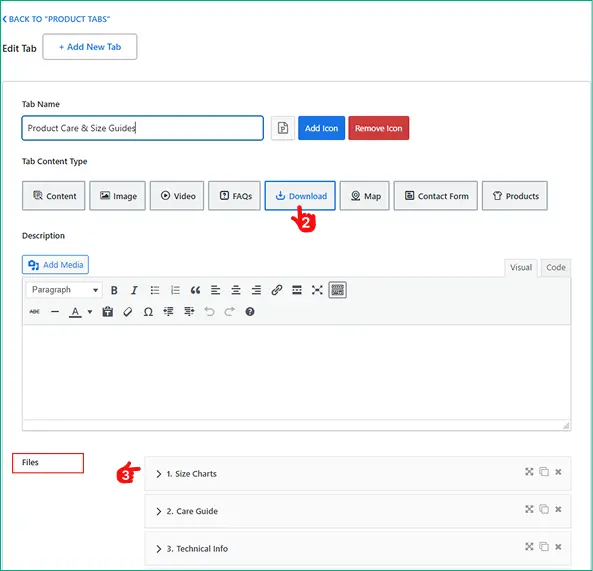
4. Add File labels (e.g., “User Manual,” ” Care Guide”, “Size Chart,” “Warranty Info”). Include short descriptions if needed, using the WYSIWYG editor.
5. Assign tabs to Desired Products, Exclude or Override using the “exclude” or “override” feature.
6. Save the Tab.
Step 3: Customize Tab Layouts & Style the Tab
Now, it’s time to add style to your Download Tab.
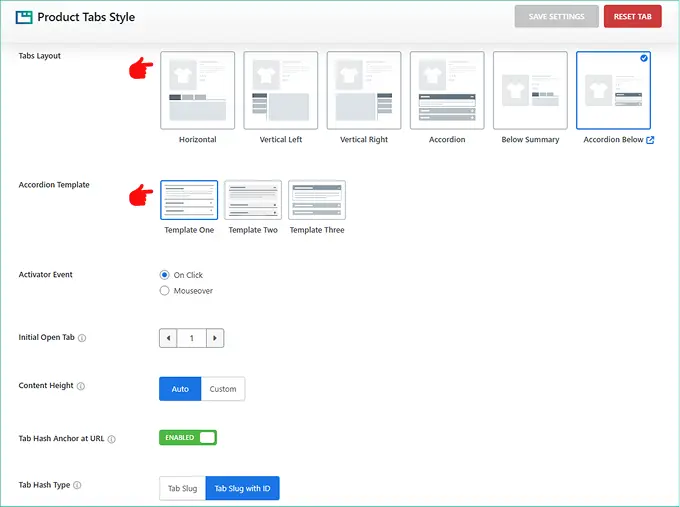
- Move to the Tab Style Tab, and Scroll to the General Settings Tab.
- Choose your preferred Tab Layouts (Horizontal, Vertical, Accordion, and more), then customize the position, alignment, and other settings according to your store’s needs.
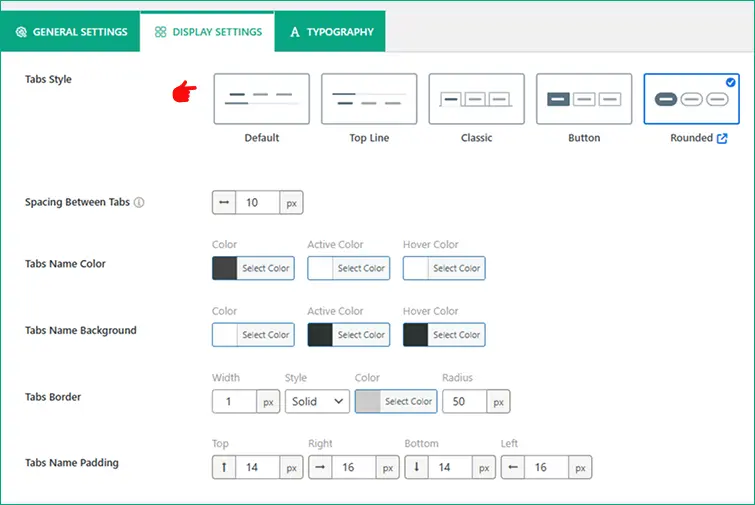
- Then, from the Tab Display Settings, choose your preferred Tab Style ( Classic, Line, Button, Rounded).
- Set your brand typography and other elements according to your brand.
Finally, click the Save Settings button, and the Downloadable File Tab will now appear on the WooCommerce product page.
Want to see how it works? Let’s watch a live demo of Download Tab.
To Sum Up
Attaching downloadable PDFs and documents isn’t just a convenience — it’s a competitive advantage to stay ahead of competitors. No separate file plugin. Smart Tabs Pro’s Download Tab gives you the power to attach products’ PDFs, Manuals, Size Charts, Images, Videos, ZIP files, and more directly to your product page.
So, why wait? Download Smart Tabs Pro today, and start creating clean, organized product tabs, including dedicated downloadable PDFs for your WooCommerce products. It not only eliminates customer hesitation but also builds trust, transforming WooCommerce product pages into complete, professional information hubs.
Leave a Reply