


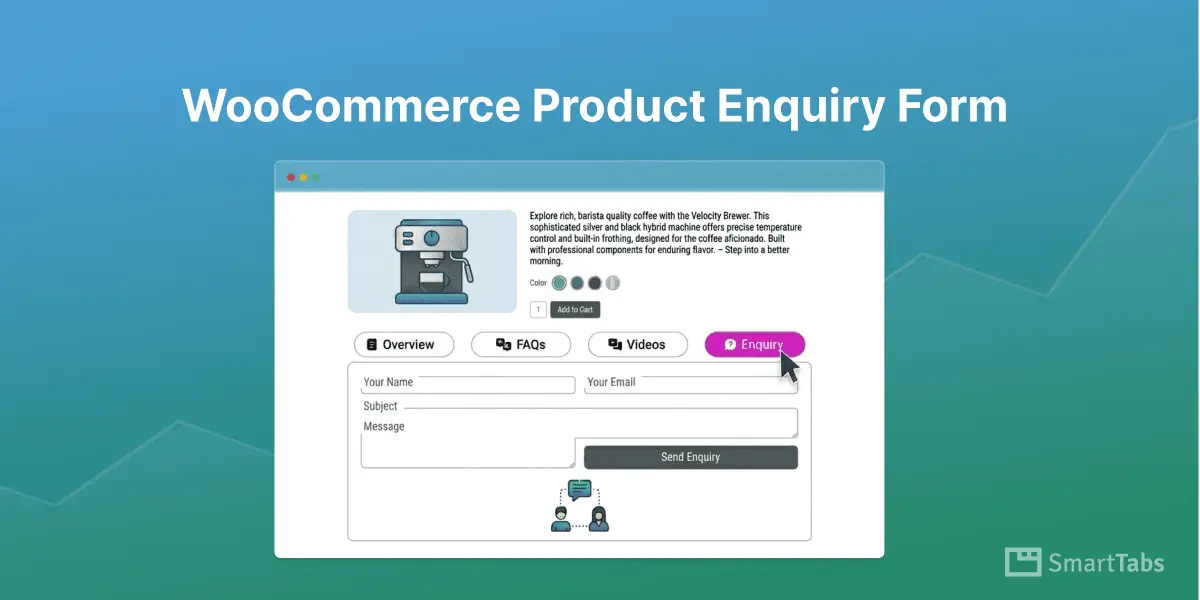
Do you know that customers often hesitate before purchasing because they cannot quickly ask product-specific questions? This hesitation frequently leads to abandoned product pages and lost conversions.
Most WooCommerce stores handle customer queries through separate contact pages or external form plugins, creating unnecessary friction in the buying process. The best effective approach to place a product-specific enquiry form directly inside WooCommerce product tabs, so customers can submit questions without leaving the product page.
In this post, I’ll share how to create a product-specific enquiry form directly inside WooCommerce product tabs without coding.
Let’s get in!
What is a Product Enquiry Form?
A product enquiry form, often known as a contact us form, is a dedicated query form that allows customers to ask questions easily about any specific products directly from the product page. It lets customers submit their questions, know valuable information, influence their purchase decision, and enhance customer service on your WooCommerce store.
Why Product Enquiry Forms Are Used?
For high-priced, custom, or bulk products, customers often hesitate to buy without asking questions. A product enquiry form lets them quickly ask questions right from the product page, reducing friction and encouraging quick questions that can directly lead to conversions. It also brings multiple benefits for your WooCommerce store.
To create a dedicated product enquiry form directly inside the WooCommerce product Tab, you need a Custom Product Tab Builder plugin like Smart Tabs.
4 Easy Steps to Create a WooCommerce Product Enquiry Form
Step 1: Install & Activate Smart Tabs
Smart Tabs is designed to create unlimited product tabs, including Image, Video, File, Contact Form, Related Product, Content, FAQ, Map, etc. With advanced customizations & rich features, this customizable & rich tab plugin allows you to create custom product enquiry forms, contact forms, and show them per product or category as needed.
So, let’s install Smart Tabs and follow the steps below to create a product enquiry form tab. However, if you’re a newcomer (future master), read the Step-by-Step Guide here to install within minutes! Then, activate it from your WordPress dashboard.
Step 2: Create a New Product Tab
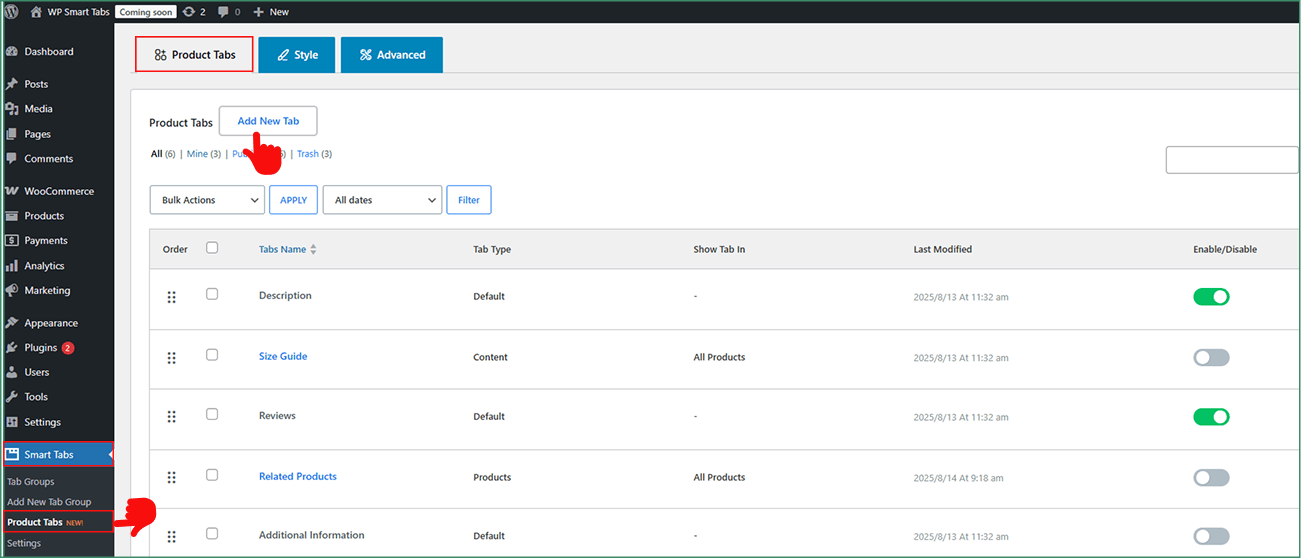
- From your WordPress dashboard, go to Smart Tabs → Product Tabs
- Click Add New Tab
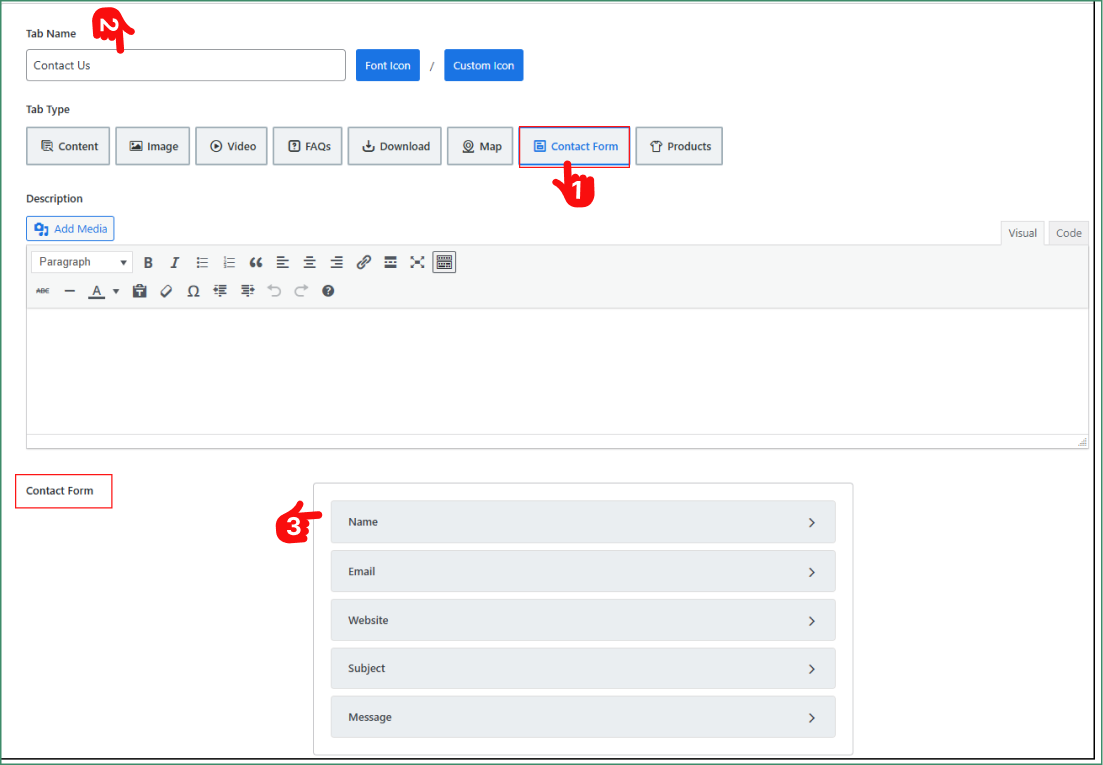
- Select Contact Form as the Tab Type
- Add a Tab Name like “Product Enquiry” or “Ask About This Product.”
- Go to the Contact From field to edit and customize as needed.
Step 3: Customize the Enquiry Form
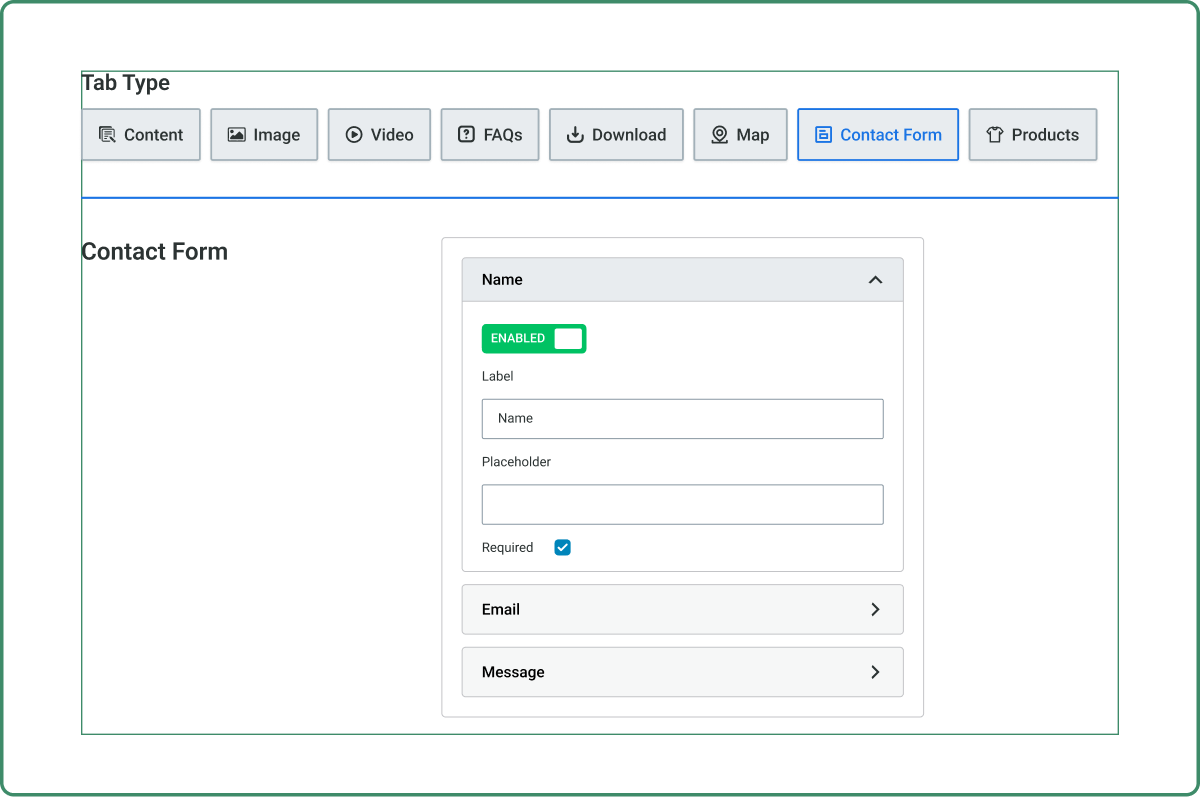
- Enable or disable fields like Name, Email, and Message
- Rename the field name based on your product query and needs.
- Save Changes.
- Set the Tab Visibility: All, Categories, Brands, or Specific Products.
Step 4: Style the Product Enquiry Form
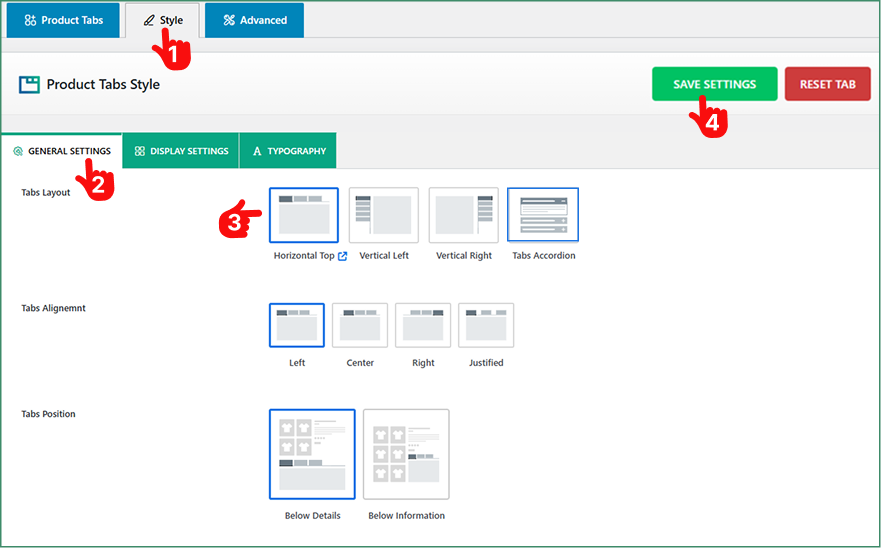
- From the Product Tabs panel, go to Tab Styles.
- Then open the General Settings section.
- Choose your preferred layout (Horizontal, Vertical, or Accordion), and adjust the position, alignment, and typography to match your brand.
- Finally, click Save Settings. The Product Enquiry tab will now appear on your product pages.
Final Words:
Stop sending potential customers to a separate contact page. Keep them engaged by adding a product enquiry form directly to your product page easily. With a dedicated Contact Form Tab, Smart Tabs makes it easier than ever.
So, download Smart Tabs and add a customizable enquiry form inside your WooCommerce product tabs to reduce friction and convert more visitors into customers.


Leave a Reply