


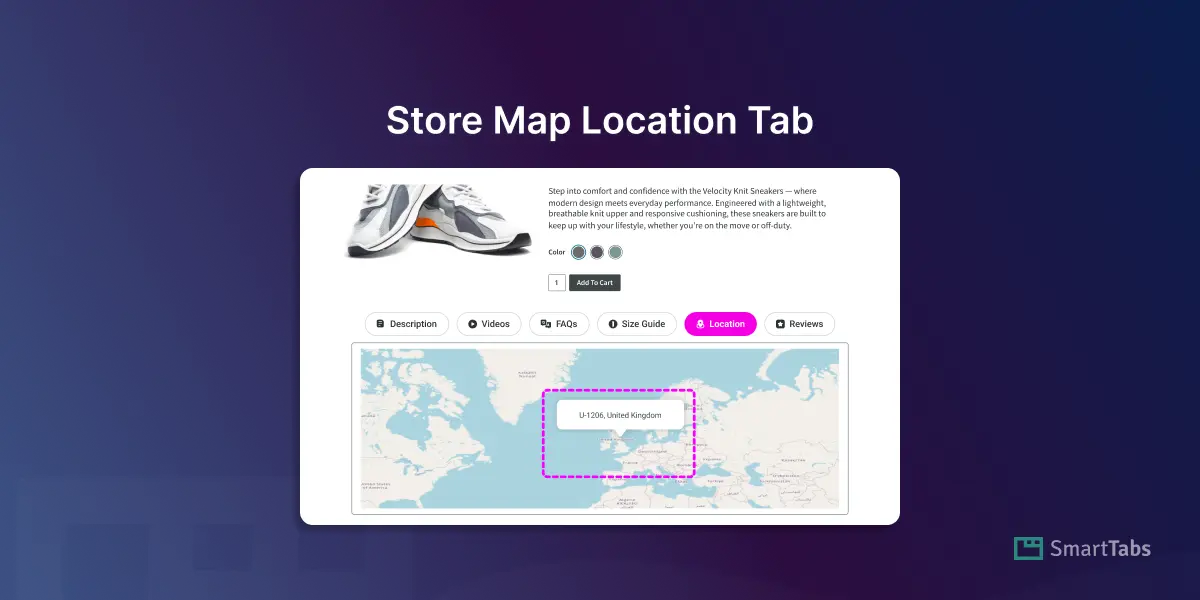
Looking for a simple way to add your WooCommerce Store Location, Pickup Point, or Business Address directly on the product page? It’s now easy. Using a Map or Location Tab, you can let your customers find or visit your store easily without coding.
Showing the physical store, pick-up points, or business HQ helps customers find your shop faster, increases trust, and provides a smooth shopping experience.
In this blog, I’ll show you exactly how to add a Store Map Location Tab to WooCommerce product page — completely code-free, using a custom product tab plugin.
Let’s dive in!
What is Store Location or Map Tab in WooCommerce?
Store Map or Location Tab in WooCommerce is a custom product tab that displays your store’s physical location, pickup point, or business address directly on the WooCommerce product page—usually using an embedded interactive map (like Google Maps).
Without sending customers to seperate “Store Locator” page, this dedicated custom Map tab lets shoppers view your location, get directions, and verify your business right from the product page. As a result, it helps build trust and supports local purchases or in-store pickups.
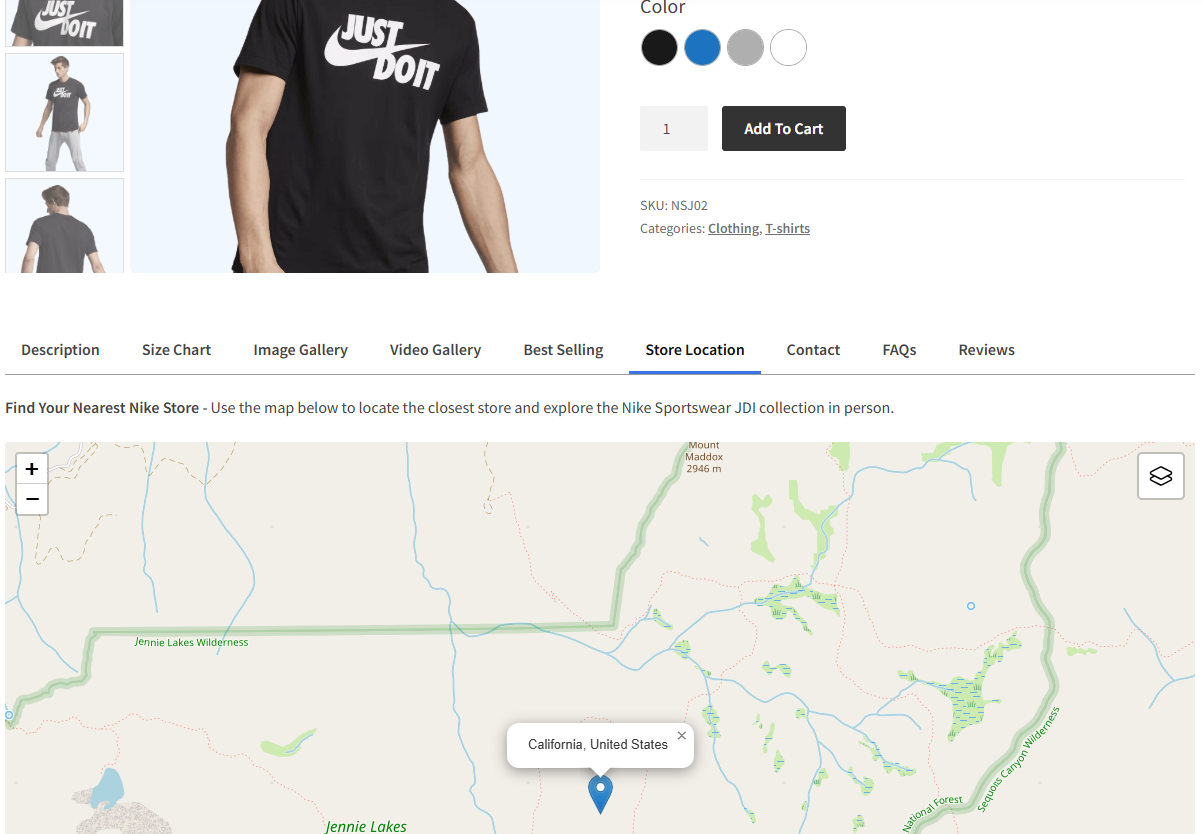
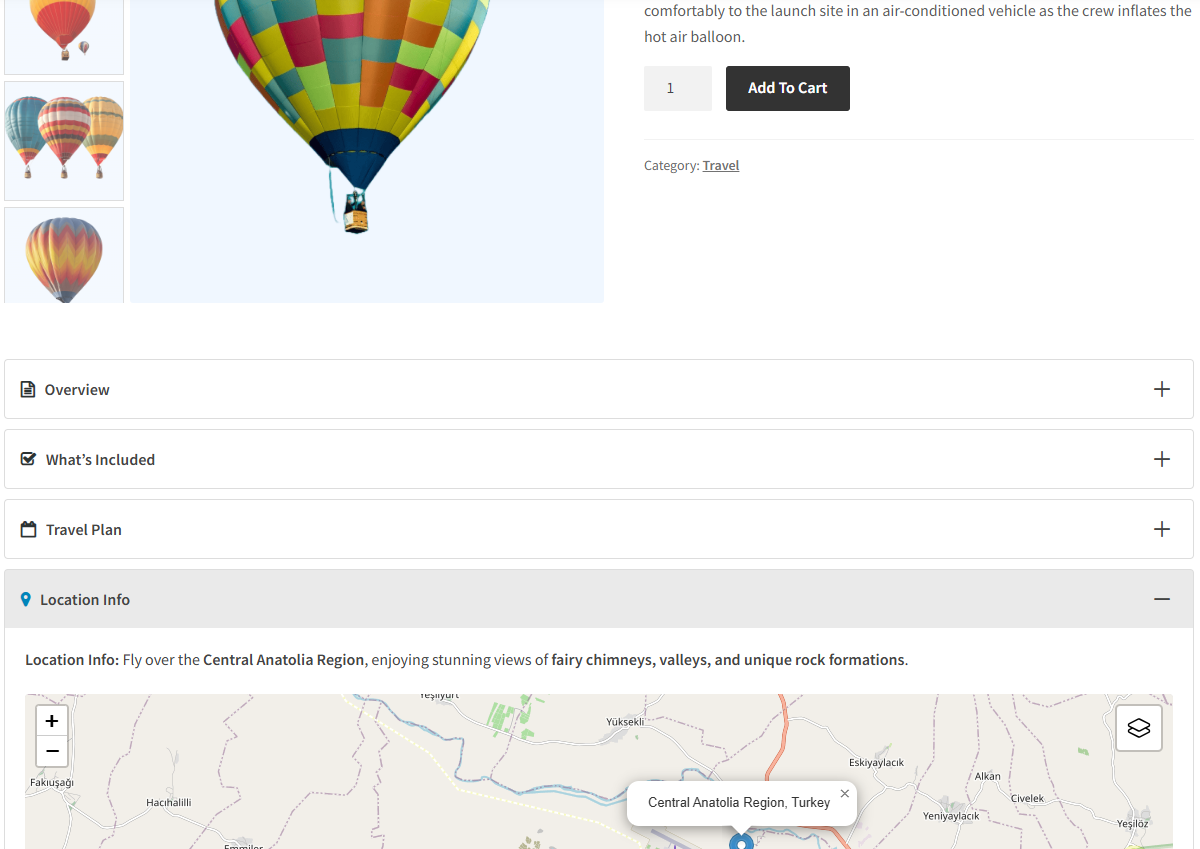
Benefits of Adding a Store Map or Location Tab to WooCommerce?
Today’s smart shoppers expect transparency. They often ask, “Where is your store located?” or “Can I pick up my order?. If your store operates offline or offers local pickup, showing a Store Map tab on your WooCommerce product page can instantly solve this.
Adding an interactive map directly inside a product tab answers all of these questions instantly — without forcing customers to find location, leaving the product page.
Here’s why a Store Map or Location tab boosts conversions:
- Builds Trust: Showing a real, verifiable store location increases customer confidence and reduces purchase hesitation.
- Helps Local Shoppers: Customers can check nearby pickup points or visit your store before buying.
- Reduces Support Requests: No more “Where is your shop?” or “Can I pick up locally?” emails.
- Improves User Experience: An embedded map delivers rich information inside a clean, organized tab.
To add a dedicated Map or Location to your WooCommerce product page, you can use a custom product tab plugin like Smart Tabs. It’s Map/Location Tab allows you to display a fully interactive map directly on your product or service page, no coding needed.
Why Smart Tabs to Add Map or Location Tab to WooCommerce?
To increase conversion and make shopping effortless for your customers, you need to create custom product tabs. Instead of relying on manual embeds or separate location pages, you can display your store or pickup location exactly where customers need it — inside the product page.
This is where Smart Tabs brings you the ultimate custom product tab solution for WooCommerce store. It lets you create unlimited custom tabs, including 8 Custom and Personalized Tab Types: (Text, Image, Video, FAQ, Map, Size Chart, Download, Related Products), and more!
Key Features of Map Location Tab:
- Embed interactive Google Map inside WooCommerce Product Tabs
- Show Store, Pickup, HQ, Factory, or Branch Locations
- Universal Tab Display: Global, Category, Brands, Per Product and more.
- No Google Maps API Key or License Required
- Clean, Organized, Customizable Tab Layouts, Icon, and Styling
- Easy Setup — just enter the location name or address
- Fully Responsive and Mobile-friendly
How to Add WooCommerce Store Map Location Tab
Using Smart Tabs Pro, you can add a Map or Location Tab in minutes — no API keys or Google Maps license required. Simply follow the steps below.
Step 1: Install Smart Tabs Pro
Smart Tabs Pro is the ultimate custom product tab solution for WooCommerce store owners, which gives full flexibility to add, create unlimited custom product tabs, manage, or rename WooCommerce default tabs efficiently. With 9 more responsive layouts (Horizontal, Vertical & Accordion), it makes it easy to customize and create professional product tabs in minutes.
Most importantly, it lets you show tabs to global, specific products, categories, tags, brands, attributes, and more. However, you can hide, override, or exclude tabs on individual products — giving you ultimate control over every product page.
So, don’t wait. Let’s install Smart Tabs. It’s easy. If you’re new (Future Master), follow this step-by-step guide, and I am sure it will help you install it within minutes.
Step 2: Create Store or Location Tab
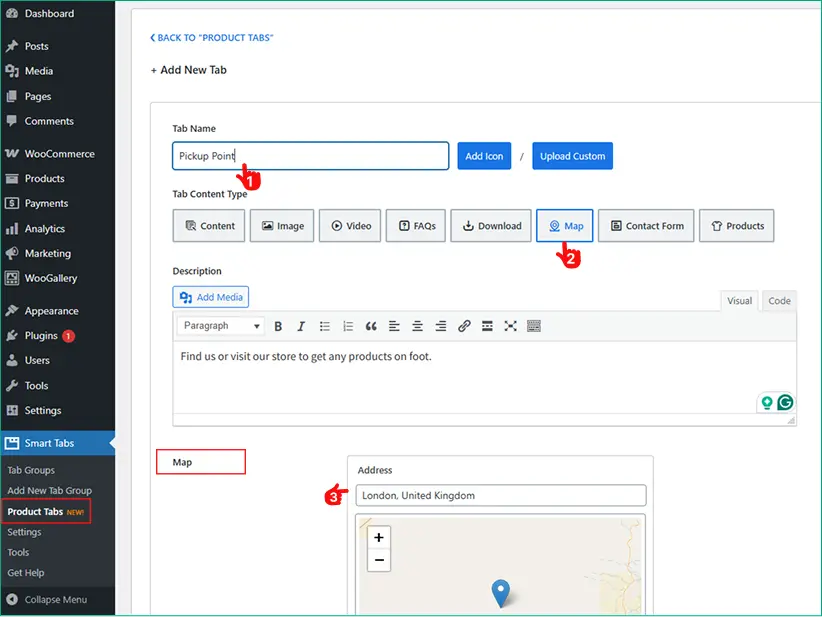
1. From your WordPress Dashboard, go to the Smart Tabs . Navigate to the Product Tabs (New), click on it, and the WooCommerce Default Tabs will be displayed.
2. Click on “Add New Tab“, choose the Tab Type (Map), give it a title, and add an icon.
3: Insert Your Store or Pickup Location. Just type Name, it will fetch every location over the world. You can use our Map Tab to show your:
Service Areas: Defining the geographical area where your services are available.
Store Location: Guiding customers to a physical retail store.
Company Location: Displaying the location of your business headquarters or offices.
Event Venues: Showing the location of a product launch, workshop, or other event.
4. Assign tabs to Desired Products using the multiple product tabs shows options.
5. Save the Tab.
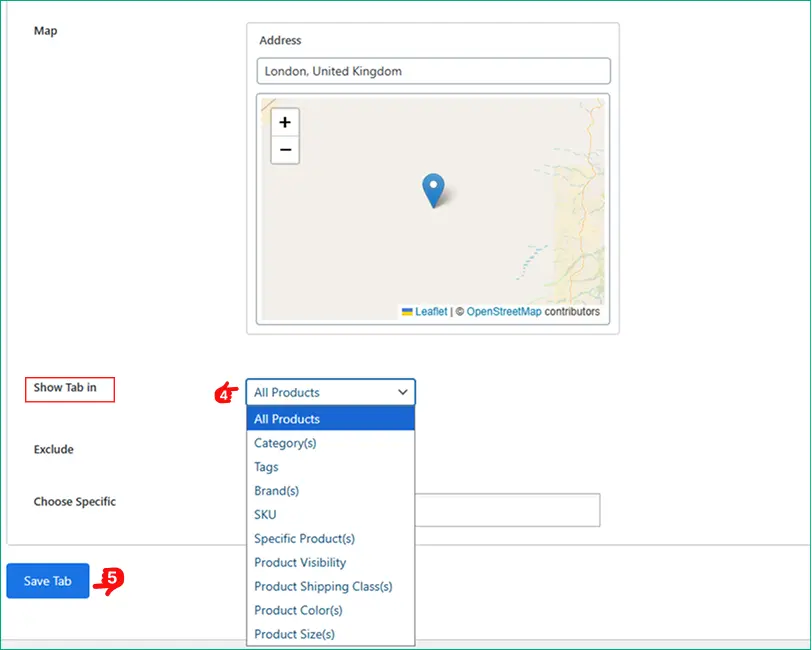
Step 3: Customize Tab Layouts & Style the Tab
Now, it’s time to add style to your Map Tab.
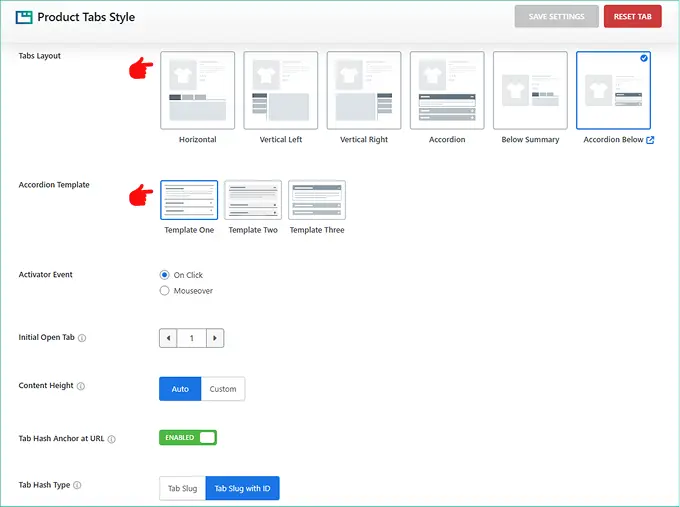
- Move to the Tab Style Tab, and Scroll to the General Settings Tab.
- Choose your preferred Tab Layouts (Horizontal, Vertical, Accordion, and more), then customize the position, alignment, and other settings according to your store’s needs.
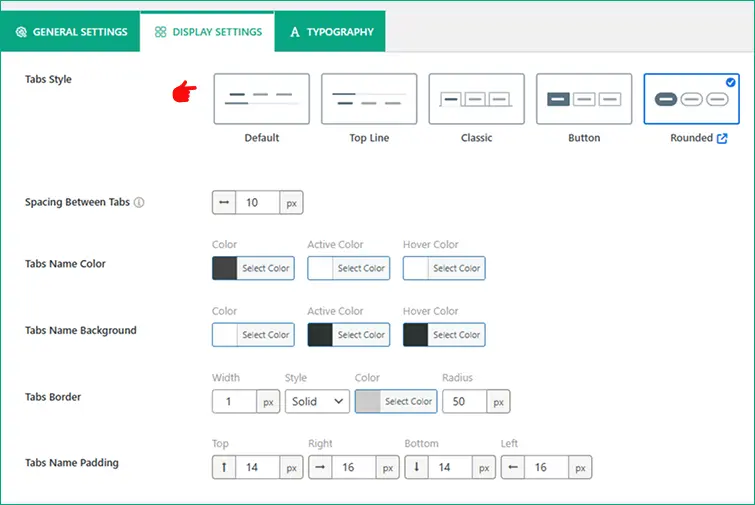
You also set your tab display style from the Tab Display Settings, choose your preferred Tab Style (Classic, Line, Button, Rounded).
Want to see How it works in Live Map Tab?
Your map now appears under a dedicated tab, for example: Store Location. (Interactive map with directions). Let’s watch it in a live Video.
Final Words
Adding a Store Map or Location tab is not simple steps, it is a powerful way to build trust, reduce bounce rate while increasing product conversions.
Why wait? Download Smart Tabs today and start adding clean and dedicated Store Map or Location tab for your WooCommerce products. It not only helps build to increase trust, but also guides your local shoppers with verified location details while transforming your product pages into complete, professional shopping experiences.


Leave a Reply