


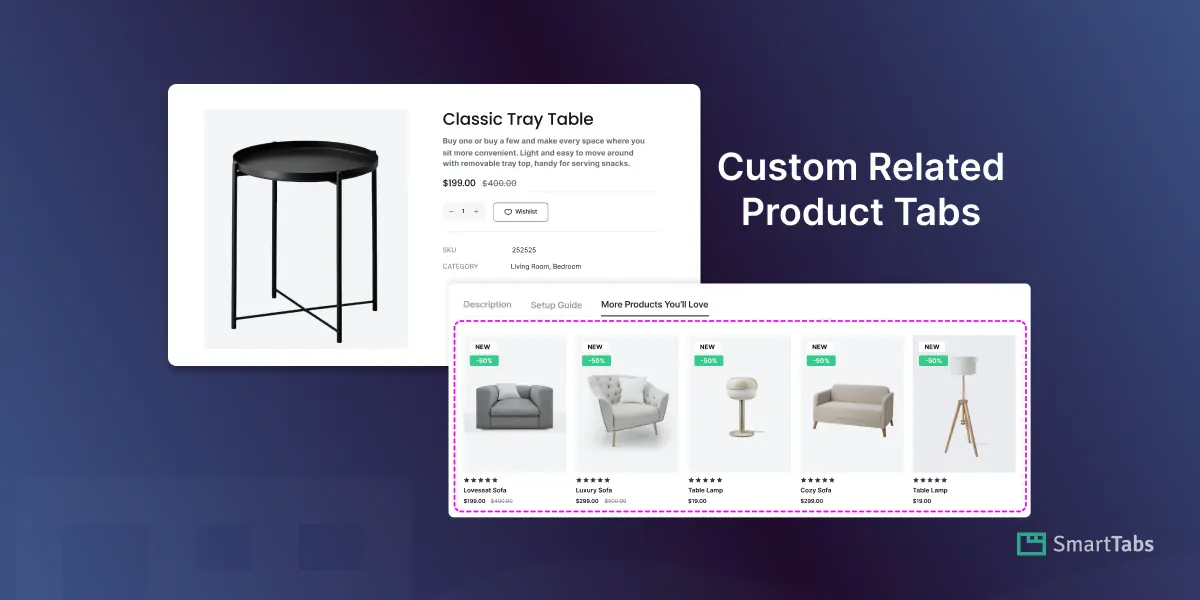
Are you relying on WooCommerce’s default Related Products section to boost sales? If so, you might be missing out on valuable opportunities to increase sales.
By default, WooCommerce suggests products based on categories or tags — but these recommendations are often irrelevant, random, or uncurated. That can distract shoppers, reduce engagement, and lower conversions.
To fully control which products appear, you need a plugin that lets you add your own custom product tab. Smart Tabs Pro does it nicely, allowing you to create a curated related products tab — all without touching any code.
In this blog, I’ll show you how to add, create, and display a custom related products tab on your WooCommerce product page to strategically transform it into a sales machine.
Let’s dive in!
What is the WooCommerce Default Related Products Section?
The default Related Products section is automatically added to every WooCommerce product page. It displays products that share categories or tags with the current product, aiming to help customers discover more items.
Why Default Related Products Aren’t Enough?
While it’s intended to help customers discover more items, it often:
- Shows irrelevant products that often don’t match what customers are looking for
- Clutters the product page, pushing important content down
- Less control over which products appear
- May clash with your custom layout or theme
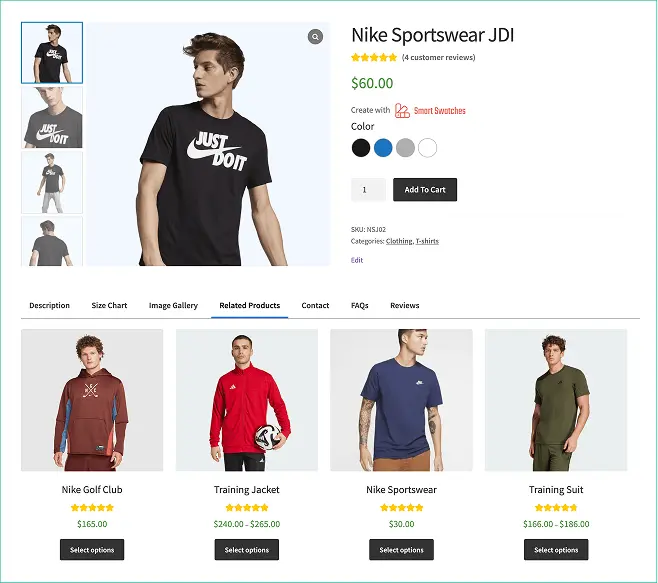
For store owners serious about conversions, relying on default suggestions isn’t enough — a curated, custom solution is far more effective. For example, a custom product tab plugin like Smart Tabs can be an excellent choice.
How to Show Custom Related Products in WooCommerce Product Page
Step 1: Install Smart Tabs Pro
Smart Tabs (formerly WP Tabs) is the best Custom Product Tabs plugin for WooCommerce, trusted by over 20000+ WooCommerce stores and WordPress business owners. It gives flexibility to add, create unlimited custom product tabs, manage, or rename WooCommerce default tabs efficiently. With more than 9 responsive layouts (Horizontal, Vertical & Accordion), you can easily customize and design professional product tabs in minutes without coding.
Most importantly, it lets you assign tabs globally, specific products, categories, attributes, per product, and more. Furthermore, it allows you to hide, override, or exclude tabs on individual products without any limits.
Key Features of the Smart Tabs Pro:
- Create Unlimited Rich-Content Tabs (Text, Image, Video, FAQ, Contact Form, Map, Size Chart, File & Custom Product Tab)
- Rename/Hide/Replace WooCommerce Default Tabs 🔥
- Hide WooCommerce Default Related Products Tabs 🔥
- Replace Related Products with Custom Products Tab (Latest, Related, Best-Selling, On-Sale, etc) 🔥
- Beautiful Image Gallery Layouts with LightBox (Grid & Masonry) 🔥
- Multiple Video Support: Inline or LightBox (YouTube, Vimeo, Wistia, TikTok, & Self-hosted)
- Show Tabs by Globally, Categories, Brands, Per product, Attributes, and more.
- 9 More Stunning Tab Layouts & Styles: 4+ Horizontal, 3+ Vertical, Accordion, and more.
- Auto-Convert Tabs to Accordions on Mobile 🔥
- Search in Tab Content, Shareable SEO URLs & FAQ schema 🔥
- Product Level Override, and Hide Tab Per Product
- Visual Drag-and-Drop Ordering & Easy Management
- Highly customizable styling, advanced typography controls, and many more.
So, let’s install Smart Tabs. It’s easy. However, if you’re new (Future Master) to this plugin, follow the step-by-step guide to install it within minutes.
Step 2: Create Custom Related Product Tab
1. From your WordPress Dashboard, go to the Smart Tabs plugin.
2. Navigate to the Product Tabs (New), click on it, and the WooCommerce Default Tabs will be displayed.
2. Click on “Add New Tab“, choose the Tab Type (Products), give it a title, and add an icon.
Now, it’s time to Display Custom-Related Products inside a Product Tab.
3. Filter products using multiple queries, such as: Latest Products, Best Selling, Related Products, On-Sale Items, Specific Products (hand-picked).
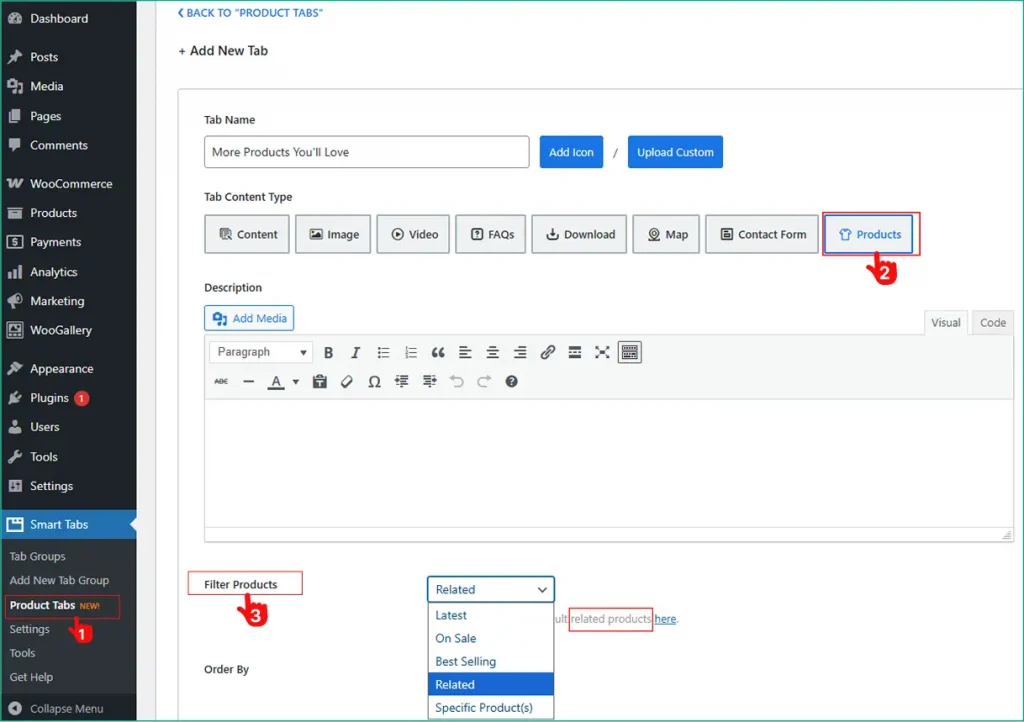
To Note: You can display your related products — either through WooCommerce’s Related Products query or by using Select Specific Products to display any product you want.
- Once you select the query Related products, it will show related products by WooCommerce default.
- Once you select the query Specific products, it will show related products with complete control as you want.
Most importantly, you can assign the tab globally, by category, per product, and more. Furthermore, you can design each product page with beautiful layouts (Horizontal, Vertical, Accordion) and more.
What’s More? Using this Smart Tabs plugin, you can easily hide the Default Related Products section from WooCommerce. Just click and make it happen.
Any more? You can also hide or show the related product tab Per Product.
How to Hide the Custom Related Products Tab Per Product
The more control, the more personalization. If you want to display a custom-related product tab for only specific products, simply follow these steps. No coding, just clicks.
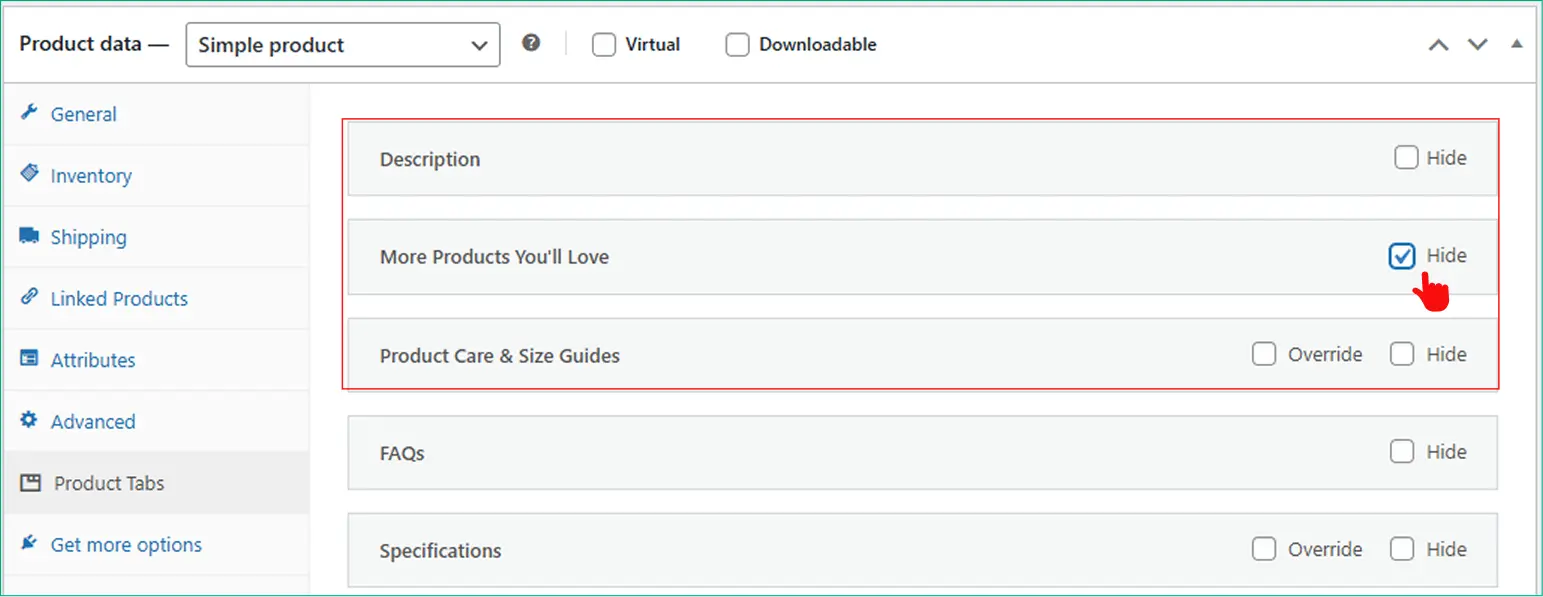
- Open your desired product, click on it to edit.
- Scroll down, and go to the Product Tabs.
- A navigation will open based on the tabs you created and assigned to it.
- Decide which tab you want to hide. To hide the custom-related product tab, check the mark.
- Done!
Benefits of Using a Custom Related Products Tab
With Smart Tabs Pro, you can replace the default Related Products section entirely or leave it hidden, while showing a more strategic, conversion-optimized set of products in a dedicated tab. For example:
- Increase Conversion: Show products that genuinely complement the main item.
- Full Control over Product Selection: Handpick or use curated queries for relevance
- Clutter-Free Page Layout: Keep product pages clean, focused, and conversion-friendly
- Consistent Design: Works seamlessly across all WooCommerce themes and layouts
- Improve Shopping Experience: Guide Customers to the only relevant products without distraction
Want to see how to in Live Action? Let’s watch a Live Demo below.
Pro Tips for Showing Custom Related Products Tabs
- Handpick relevant products – Show items that complement or upgrade the main product.
- Use Smart Tabs Pro queries – Combine Related, Specific, Best Sellers, On-sale, or Latest products.
- Keep the layout clean – Display only a few products for easy browsing.
- Add clear titles and icons – Make the tab noticeable, e.g., “Recommended for You.”
- Hide default related products – Avoid duplicate suggestions and focus attention on your curated tab.
Final Words
By adding a custom Related Products tab, you can showcase the right items in the right place — exactly when shoppers are ready to make a purchase. This not only boosts conversions but also helps you increase sales effortlessly, right from the product page.
So, why wait? Download Smart Tabs Pro today, and show your best products where they count, turning every product page into a smart selling machine.


Leave a Reply