

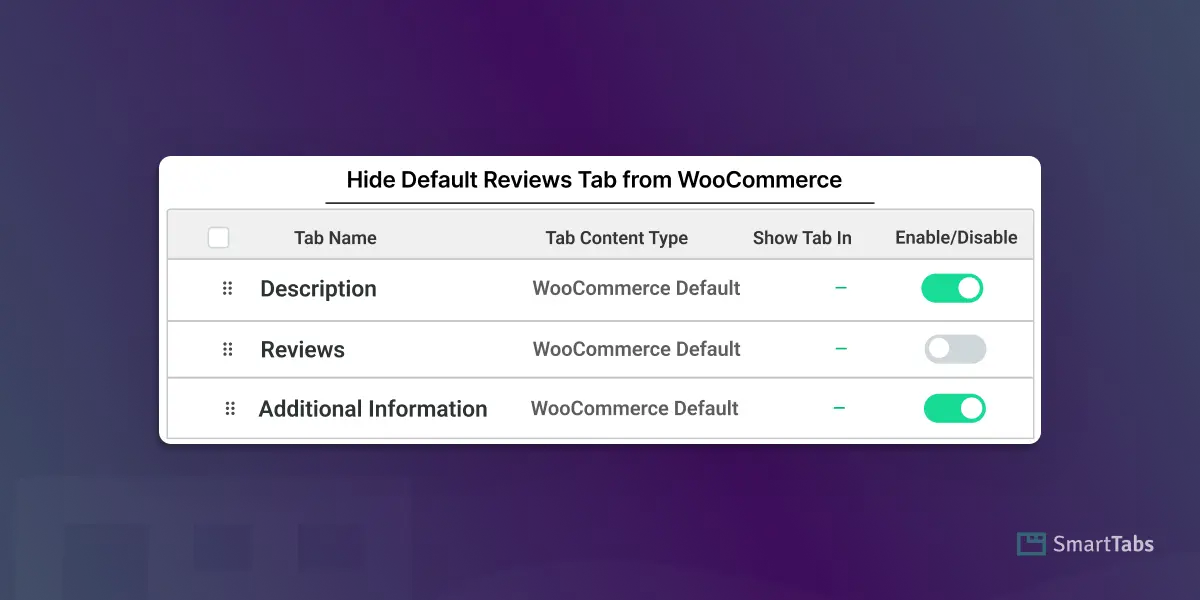
Looking for a simple way to hide or remove the default Reviews tab from your WooCommerce product page? In this article, I’ll show you how to disable the WooCommerce reviews tab in just two clicks.
Displaying Reviews helps to build trust, but WooCommerce’s built-in “Reviews” tab can sometimes hurt more than it helps — especially when it shows irrelevant feedback, spam, or empty “No reviews yet” sections. Many store owners remove it to keep product pages cleaner and more conversion-focused.
After reading this blog, you’ll be able to hide the Reviews tab without any coding — and even override the reviews tab name or show it only on specific products with complete control.
Let’s get started!
What is the WooCommerce Default Reviews Tab?
The WooCommerce Reviews tab is a built-in product tab that displays your customer ratings and written reviews for each product. It includes the review list and the review submission form, and appears automatically on every single product page — whether or not any reviews exist.
While this tab helps to see real feedback from previous customers, sometimes it might lose its purpose. For example, empty review sections, irrelevant comments, or spam submissions can reduce trust instead of increasing conversions. That’s why many store owners choose to hide or remove the default WooCommerce Reviews tab and replace it with a cleaner, more controlled layout.
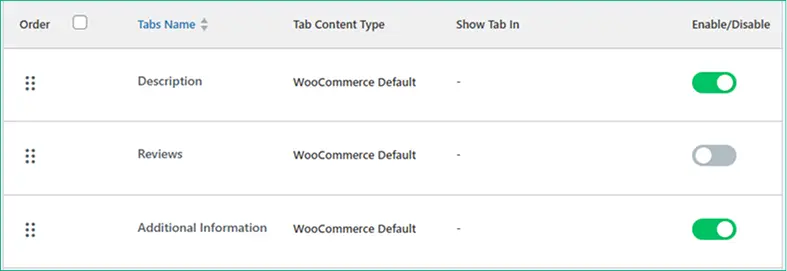
The Important Reasons Behind Hiding or Disabling the Default Reviews Tab:
- WooCommerce automatically shows it, even with zero reviews, creating a messy product section.
- Low-quality, irrelevant, or spam reviews can damage credibility instead of building trust.
- For many stores (digital goods, services, B2B), reviews aren’t relevant and may confuse customers.
- The default Reviews tab can clutter your product page, pushing important content lower.
- Less control over which reviews appear on which product or how the tab is displayed.
- The design depends on your theme, which may conflict with your custom layout.
- Unnecessary when already using a custom review tab or a curated testimonial layout.
2 Easy Steps to Remove WooCommerce Default Reviews Tab from Product Page
Step 1: Install Smart Tabs for free
Smart Tabs (formerly WP Tabs) is the best Custom Product Tabs plugin for WooCommerce and WP Tab Builder, trusted by more than 20000+ WooCommerce stores and WordPress business owners. It gives flexibility to add, create unlimited custom product tabs showcasing rich content with 8 more dedicated (Text, Image, Video, FAQ, Map, Size Chart, File & Related Products ) tabs, and manage them efficiently. It comes with 9 responsive layouts (Horizontal, Vertical & Accordion), allowing easy customizations to design professional product tabs in minutes.
Most importantly, it provides ultimate control to hide, edit, and rename WooCommerce default tabs (Descriptions, Reviews, Additional Information) easily. Moreover, you can exclude tabs on individual products without any limits, and show globally, specific products, categories, per product, and more.
Key Features of the Smart Tabs:
- Create dedicated Rich-Content Tabs (Image, Video, Form, FAQ, Map, Size Chart, File & Product Tab)
- Disable/ Hide WooCommerce Default Tabs ( Descriptions, Reviews 🔥, Additional Information)
- Override or Rename Default Review Tabs 🔥 and Show Reviews Per Product 🔥
- Remove WooCommerce Default Related Products Section
- Replace Default Related Products with Custom Products Tab (Latest, Related, Best-Selling, On-Sale, etc) 🔥
- Add Beautiful Image Gallery Layouts with LightBox (Grid & Masonry) 🔥
- Multiple Video Support: Inline or LightBox 🔥 (YouTube, Vimeo, Wistia, TikTok, & Self-hosted)
- Show Tab with full Control: Globally, Categories, Brands, Per product, Attributes, and more.
- 9 + Tab Layouts & Styles: 4+ Horizontal, 3+ Vertical, Accordion 🔥, and more.
- Auto-Convert Tabs to Accordions on Mobile 🔥
- Search in Tab Content, Shareable SEO URLs & FAQ schema 🔥
- Visual Drag-and-Drop Ordering & Product Level Override
- Easy to customize stylings, advanced typography, and many more.
So, why wait? Let’s install Smart Tabs for free and explore how to remove or disable the default reviews tab from WooCommerce, no coding needed. If you’re new to this plugin, follow this step-by-step guide to install it within minutes.
Step 2: Remove or Hide WooCommerce Default Reviews Tab
You can do it in multiple ways, like using code or changing the theme editor. But the easiest way is to use a custom product tab plugin like Smart Tabs. As you have already installed it, you can easily disable or hide the reviews tab and create a clean, clutter-free product page. Simply follow the steps below to disable it with two clicks.
1. From your WordPress Dashboard, go to the Smart Tabs plugin, and navigate to the Product Tabs (New).
2. After you click on it, the WooCommerce Default Tabs (Descriptions, Reviews, and Additional Information) will be displayed.
3. From the Tab Dashboard, you will see all the default tabs, and a toggle option ( Enable/Disable). Simply click on the Reviews toggle and turn it off.
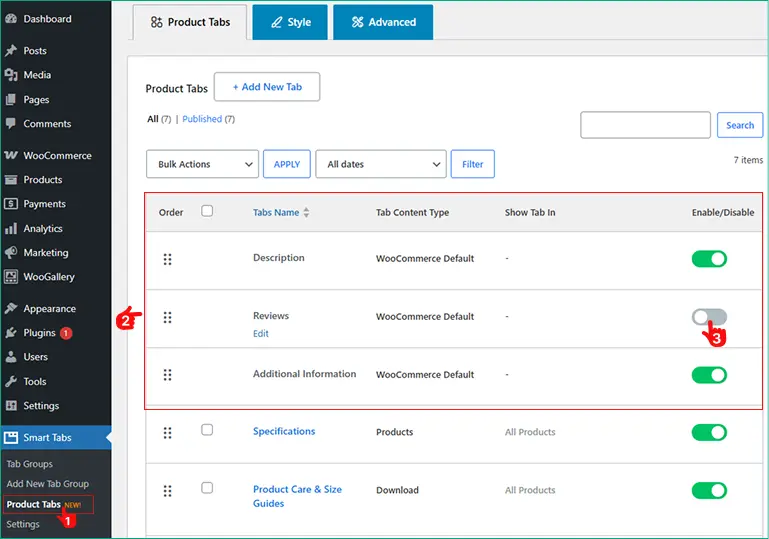
Congratulations! Once you’re done with it, the default reviews tab won’t show anymore. So easy.
Wait! Smart Tabs is not limited here. It also comes with more extensive features for the store owners looking for ultimate control to hide and override the WooCommerce default tab, exactly what you need.
It gives full customization power with Smart Tabs Pro, allowing you:
- To override or rename the WooCommerce default reviews tab.
- To show or hide the WooCommerce default reviews tab per product right from the product page.
How to Override or Rename WooCommerce Default Reviews Tab
Download Smart Tabs Pro to enjoy it, and follow the steps below.
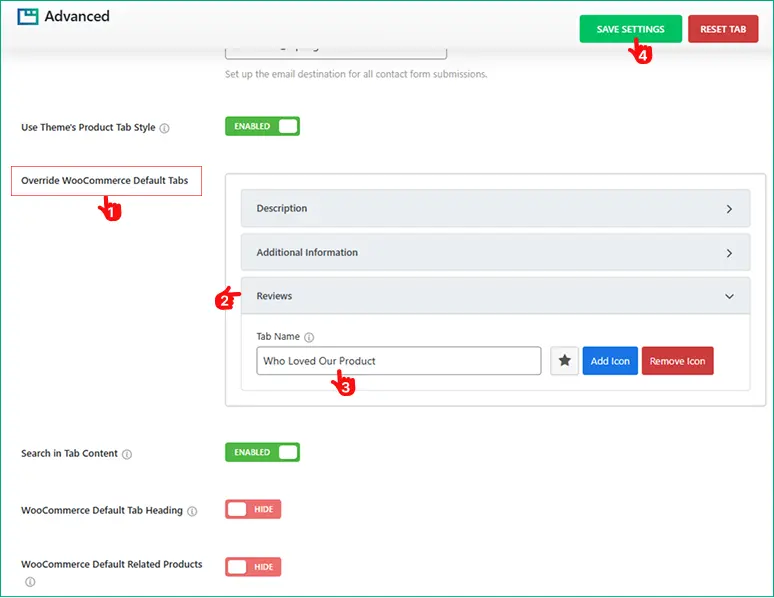
1. From the Product Tabs Panel, navigate to the Advanced Tab Settings.
2. You will find options to override WooCommerce default tabs, including Reviews
3. Click on it, rename it as your own, eg, “Who Loved our Products“, and add a custom icon.
4. Save Settings. Congratulations!
Beyond it, you can also remove WooCommerce Default Related Products. Simply, turn it off.
What’s more? More control over every product page, hide or show as you want.
How to Hide WooCommerce Default Reviews Tab Per Product
The more control, the more personalization. If you want to display reviews for only specific products, simply follow these steps. No coding, just clicks.
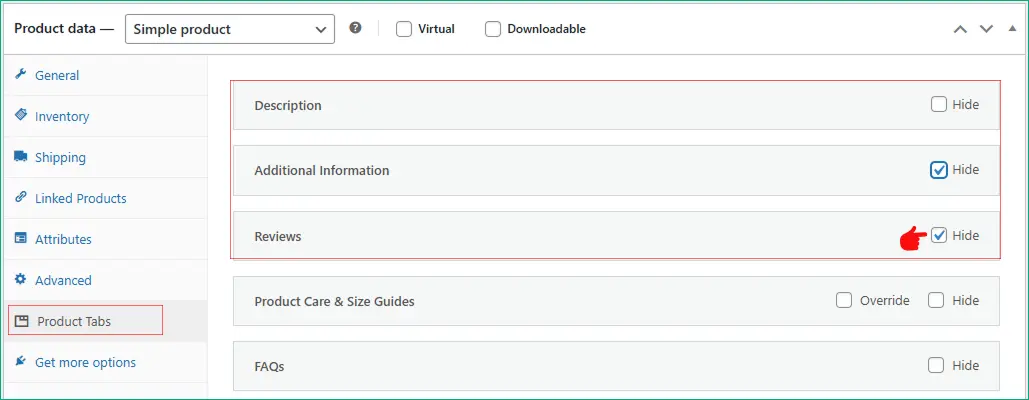
- Open your desired product, click on it to edit.
- Scroll down, and go to the Product Tabs.
- A navigation will open based on the tabs you created and assigned to it.
- Decide which tab you want to hide. To hide the review tab, check it mark. Done.
Final Words
Removing WooCommerce’s default Reviews tab isn’t just about hiding it — it’s giving you complete control over how your product information is displayed. The best part is the Smart Tabs Pro, which allows you to rename the Reviews tab, override its content, and even hide it on specific products while keeping your layout clean and customer-friendly.
So, don’t be late. Download Smart Tabs today, disable the default Reviews tab instantly, and rename and display it exactly as the products you want. It not only improves your customer shopping experiences but also boosts conversions.
Leave a Reply