

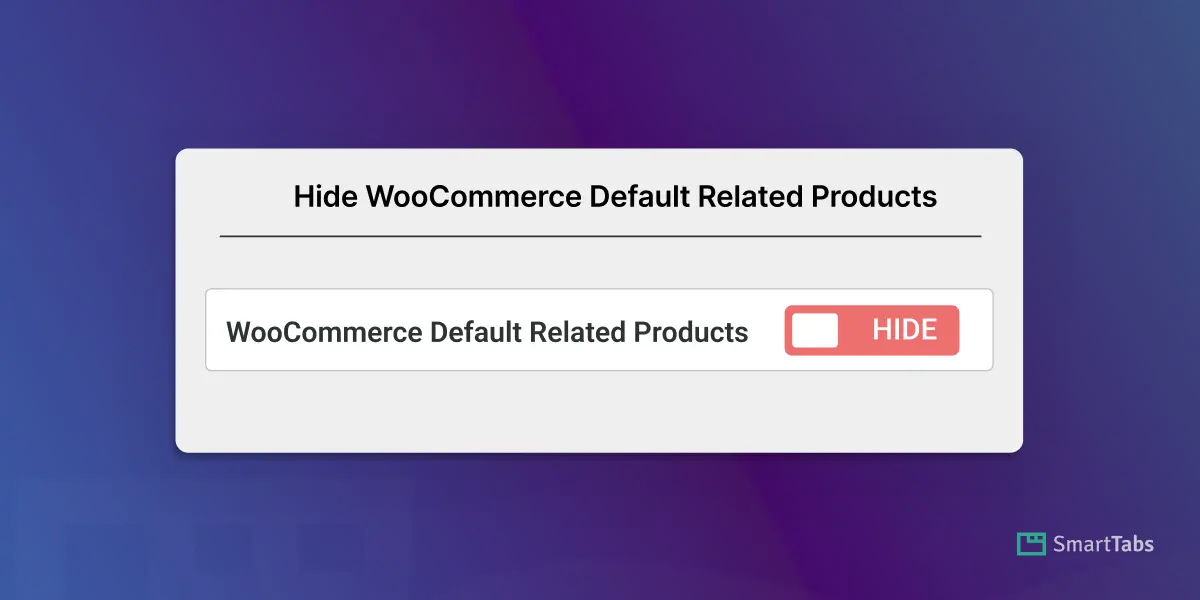
Struggling to hide or remove default related products from your WooCommerce product page? In this blog, I’ll show you how to remove or hide default related products from WooCommerce without any coding.
WooCommerce automatically displays “Related Products” on every product page. Sometimes, it shows unnecessary, outdated, or random items that don’t align with what the customer is viewing, reducing conversion rates.
From now on, you can remove or disable related products, control the default WooCommerce tabs, and display any custom related products within a few clicks. It helps to give your customers a better shopping experience while increasing conversion rates and boosting sales.
Let’s get started.
What is WooCommerce Default Related Products?
The default Related Products is an additional product section in WooCommerce. It automatically displays relevant products or suggests other products based on the product categories or tags as the viewed product on each single-product page.
While this related products section helps customers find more products, it sometimes shows irrelevant suggestions, reducing sales or making pages look cluttered. That’s why many store owners might want to hide or remove WooCommerce’s default Related Products with a curated, more relevant custom products tab.
Why is it necessary to remove or hide WooCommerce-related products?
- WooCommerce automatically picks related products, often showing irrelevant items.
- Random suggestions don’t always match what your customers are looking for.
- Extra suggestions can make your product page feel cluttered.
- Irrelevant items can distract shoppers and lower conversions.
- Less control over which products appear to increase upsell & cross-sell.
- Its layout may clash with your custom design or theme.
- Most importantly, unnecessary when you’re using a custom product tab.
2 Easy Steps to Remove or Hide WooCommerce Default Related Products:
Step 1: Get Smart Tabs
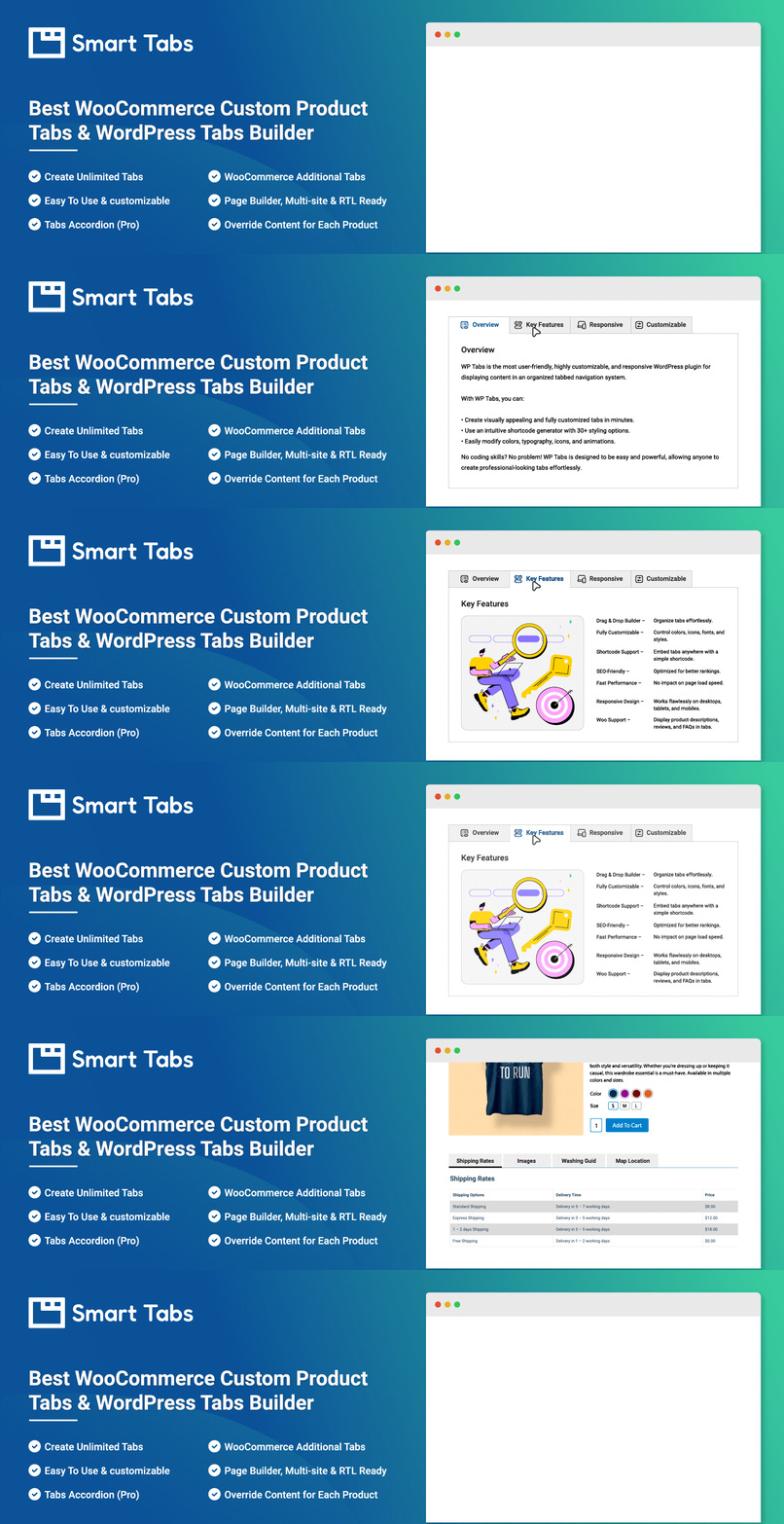
Smart Tabs (formerly WP Tabs) is the best Custom Product Tabs for WooCommerce & WP Tab Builder plugin, trusted by over 20000+ WooCommerce stores and WordPress business owners. It gives flexibility to add, create unlimited custom product tabs, manage, or rename WooCommerce default tabs efficiently. With more than 9 responsive layouts (Horizontal, Vertical & Accordion), you can easily customize, design professional product tabs in minutes without coding.
Furthermore, it lets you assign tabs globally, specific products, categories, attributes, and more. Besides, it allows you to hide, override, or exclude tabs on individual products without any limits.
Key Features of the Smart Tabs Pro:
- Add Unlimited Rich-Content Tabs (Text, Image, Video, FAQ, Map, Size Chart, File & Custom Product Tab)
- Rename/Hide/Replace WooCommerce Default Tabs 🔥
- Hide WooCommerce Default Related Products Tabs 🔥
- Replace Related Products with Custom Products Tab (Latest, Related, Best-Selling, On-Sale, etc) 🔥
- Stunning Image Gallery Layouts with LightBox (Grid & Masonry) 🔥
- Multiple Video Support: Inline or LightBox (YouTube, Vimeo, Wistia, TikTok, & Self-hosted)
- Universal Tab Shows by Globally, Categories, Brands, Per product, Attributes, and more.
- 9 More Beautiful Tab Layouts & Styles: 4+ Horizontal, 3+ Vertical, Accordion, and more.
- Auto-Convert Tabs to Accordions on Mobile 🔥
- Search in Tab Content, Shareable SEO URLs & FAQ schema 🔥
- Visual Drag-and-Drop Ordering & Product Level Override
- Highly customizable styling, advanced typography controls, and many more.
So, don’t be late. Let’s install Smart Tabs. It’s easy. However, if you’re new (Future Master) to this custom tab plugin, follow this step-by-step guide, and I am sure it will help you install it within minutes.
With this dedicated tab plugin, you can create custom product tabs and remove or hide Default Related Products easily. Simply follow the steps below.
Step 2: Hide WooCommerce Default Related Products
As a store owner, you’re using a custom product tabs plugin; now it’s time to remove the WooCommerce default related products. You can do it in various ways, but the easiest way is to use a plugin like Smart Tabs Pro. Follow the steps below to remove or hide it.
After installing Smart Tabs Pro, it’s easy.
1. From your WordPress Dashboard, go to the Smart Tabs plugin. Navigate to the Product Tabs (New), click on it, and the WooCommerce Default Tabs will be displayed.
2. Click on “Add New Tab“, choose the Tab Type (Products), give it a title, and add an icon. Filter products from multiple queries, such as Latest, Best Selling, Related, On-sale, or Specific Products.
Decide how to choose your custom-related products using the Related Products query within a custom tab, or the Select Specific Products query to display any of your desired products.
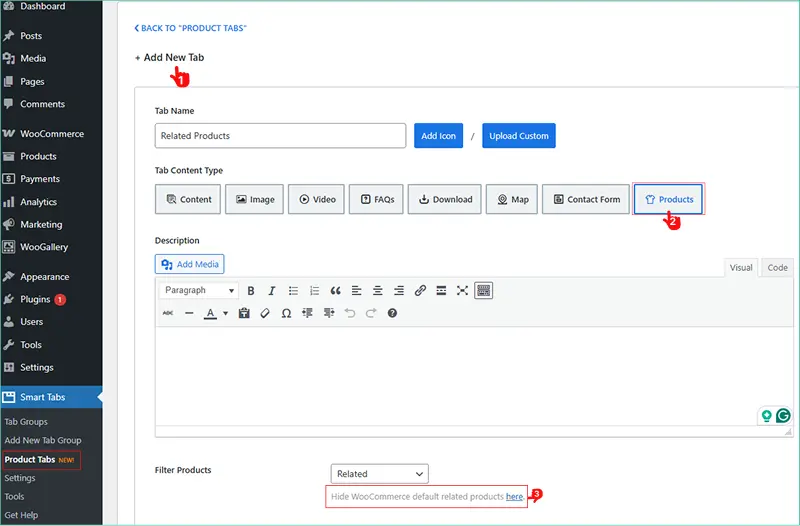
3. Now, it’s time to hide WooCommerce Default related products and replace them with the custom related products tab. You can hide or remove it by clicking on the text showing below the filter products. It will navigate you to the Advanced Tab Settings.
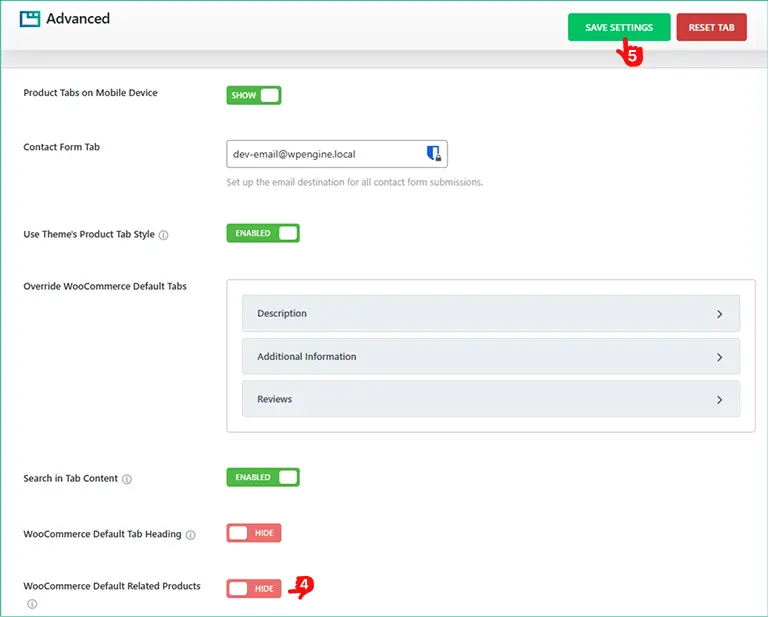
4. Below the Advanced Tab Settings panel, you will find various options to customize WooCommerce default tabs, and below them, you will find the desired toggle-based option to hide WooCommerce Default Related Products. Simply, turn it off.
5. Save Settings. Congratulations!
Once you hide it, the default related product tabs won’t appear anymore on the product page.
Better Alternative to Default Related Products
Instead of relying on WooCommerce’s automatic (and often irrelevant) related-product suggestions, you can take full control by displaying curated product recommendations inside a clean, organized tab layout. It keeps your product pages focused, consistent, and increases your product page conversion rates
With Smart Tabs Pro, it’s now easier. It allows you to create your own custom related-products section — without any coding, no theme editing, no templates to modify.
How to Create Custom Related Product Tabs?
It’s simple.
- Install Smart Tabs Pro
- Add Custom Product Tab
- Choose the Tab Type: Products
- Give your tab a title and add a custom icon
- Then, filter products using multiple smart queries, such as: Latest Products, Best Selling, Related Products, On-Sale Items, Specific Products (hand-picked). Now, you can show related products using a custom product tab
- Decide how your related products should appear — either through WooCommerce’s Related Products query inside your custom tab or by using Select Specific Products to display any product you want.
- Most importantly, you can assign the tab globally, by category, per product, and more.
Final Thoughts
Removing WooCommerce’s default related products isn’t a simple fix; now you can control every product page smartly and efficiently. The best part is, with Smart Tabs Pro, you can show your own custom related products with dedicated product tabs in organized tab layouts.
So, why wait? Download Smart Tabs today, hide default related products easily. Replace them with a clean, curated tab, and gain full control, and deliver a smarter shopping experience that truly drives conversions.
Leave a Reply