

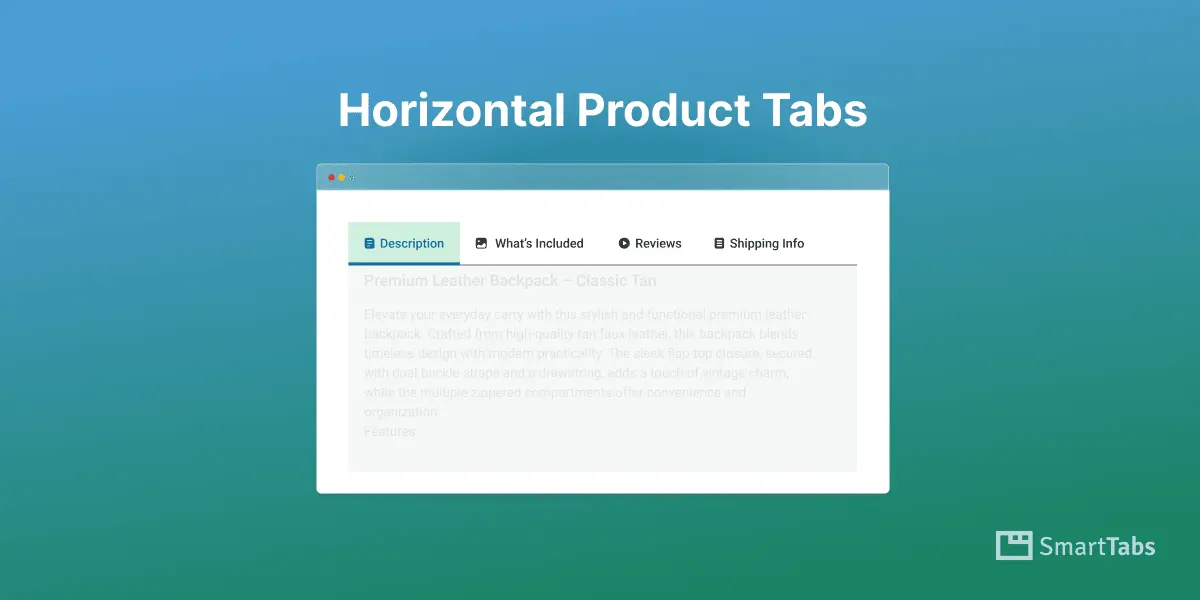
Are you looking to create and add clean, customizable horizontal product tabs in your WooCommerce store? You’re in the right place.
WooCommerce displays product information horizontally by default, but you can transform it to the next level by creating modern horizontal tabs with advanced tab alignments & powerful customizations.
In this guide, I’ll show you how to create modern horizontal product tabs in WooCommerce for FAQs, size guides, product details, and more using Smart Tabs in just a few minutes.
Let’s get started.
Why Horizontal Product Tabs Matter for Your Store
Horizontal product tabs make your WooCommerce product pages organized, user-friendly, and conversion-focused. Instead of overwhelming visitors with long product pages, tabs break content into clear, clickable sections, helping shoppers find what they need quickly.
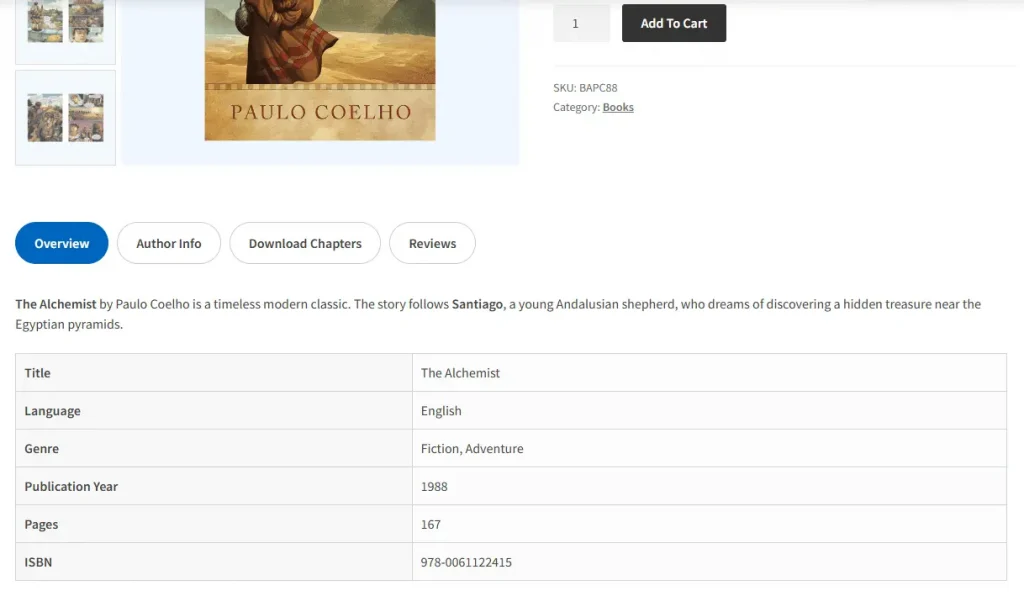
How to Create Horizontal Product Tabs in WooCommerce (3 Easy Steps)
Every WooCommerce store owner wants a fast and easy way to create and manage product information without clutter. Using a powerful plugin like Smart Tabs makes it simple to create and manage horizontal product tabs in just a few clicks. Follow the steps below to get started.
Step 1: Get Smart Tabs
Smart Tabs is the ultimate custom product tab plugin for any WooCommerce store owner. It’s designed to add, create, and manage custom product tabs, rename or replace WooCommerce default tabs efficiently. With 9 more responsive modern tab layouts (Horizontal, Vertical & Accordion), it gives ultimate power to create, edit, design powerful, and fully customized product tabs in minutes.
Most importantly, it lets you manage or assign tabs to global, specific products, categories, tags, brands, attributes, and more. Beyond this, it makes it easy to hide, remove, override, or exclude tabs on individual products — giving you ultimate control over every product page.
Key Features:
- Unlimited Rich-Content Tabs – Add text, images, videos, FAQs, maps, forms, files, and more.
- Replace Default WooCommerce Tabs – Rename, hide, or replace default product tabs. 🔥
- Replace Related Products Tab – Show the latest, related, best-selling, or on-sale products. 🔥
- 23+ Ready Tab Layouts – Choose from 4+ horizontal, 3+ vertical, accordion, etc. tab templates.
- Responsive & Mobile-Friendly Tabs – Automatically convert tabs to accordions on mobile. 🔥
- Image Gallery Layouts – Display images in Grid or Masonry with Lightbox. 🔥
- Multiple Video Support – Embed YouTube, Vimeo, Wistia, TikTok, or self-hosted videos.
- Flexible Display Rules – Show tabs globally or by product, category, brand, or attribute.
- SEO & Search Ready – Searchable tab content, shareable URLs, and FAQ schema. 🔥
- Product-Level Control – Override or hide tabs for specific products.
- Drag-and-Drop Ordering – Easily reorder and manage tabs visually.
- Advanced Styling Options – Customize colors, spacing, and typography.
So, don’t wait. Let’s install Smart Tabs. If you’re new (Future Master), follow this guide. Stay ahead of the competition with over 20,000+ WooCommerce stores and start creating your modern product tabs in minutes.
Step 2: Create Your First Product Tab
- From your WordPress Dashboard, go to the Smart Tabs plugin.
- Navigate to the Product Tabs (New), and click on “Add New Tab“.
- Choose the Tab Type (such as Content, FAQs, Image, File, or Products). Enter a Tab Title, Tab Icon, and add content to the WYSIWYG editor.
- Assign the Tabs to All, Categories, or Specific Products. Furthermore, you can easily exclude it from any specific products.
- Save the Tab.
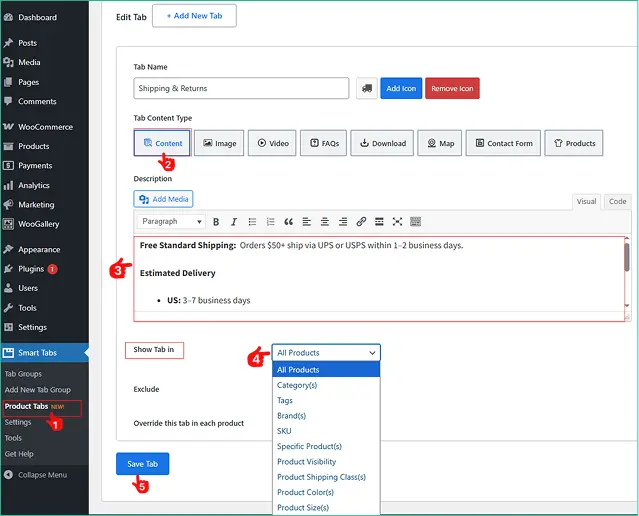
Great, you have added tab content, now it’s time to customize its layouts and add style with a horizontal layout.
Step 3: Choose Horizontal Layout & Customize
To display your product tabs horizontally, follow the steps below:
- From the Product Tab, Navigate to the Style.
- Move to the Tab Style panel, and scroll to the General Settings.
- Choose your desired Tab Layouts (Horizontal, Vertical, Accordion), then customize the position, alignment, and other settings according to your store’s brand style.
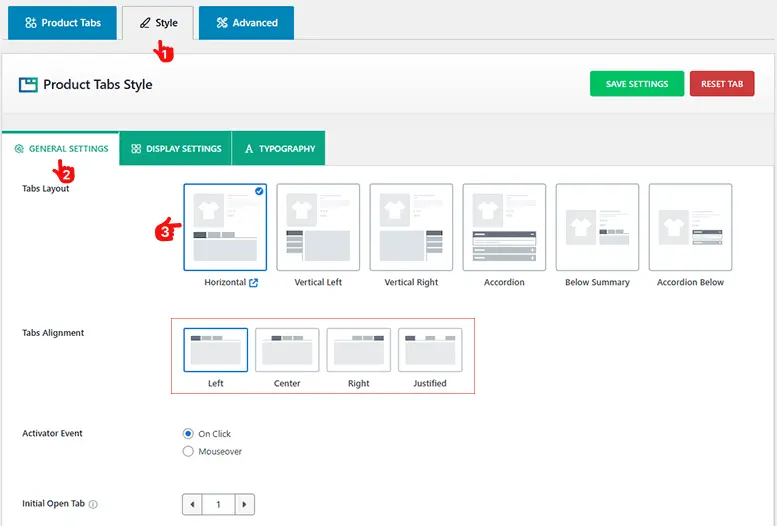
Moreover, you are free to design each custom product tab in beautiful Vertical, Accordion layouts, and more.
Furthermore, you can easily add the modern tab style with rich customizations.
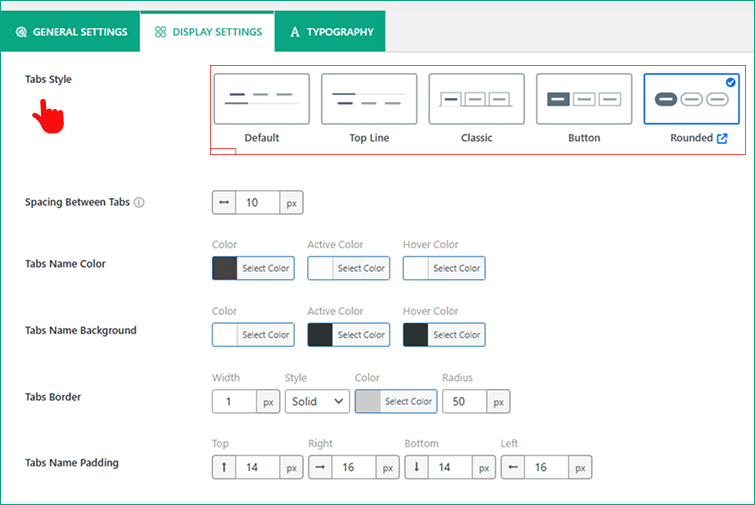
- Simply, navigate to Tab Display Settings, choose your preferred Tab Style (Classic, Line, Button, or Rounded).
- After finishing it, you can customize tab layouts, style, content typography, and other elements according to your brand.
- Finally, click the Save Settings.
Congratulations! Now, the horizontal product tabs are live on your WooCommerce product page.
Final Words
Horizontal product tabs help organize your WooCommerce product pages, making information easier to navigate and improving the overall shopping experience.
So why wait? Download Smart Tabs today, and create unlimited product tabs and customize modern horizontal tabs with rich content and flexible layouts, making your product pages cleaner and more conversion-friendly.
Leave a Reply